
Connect at least one media server first.
Plekt can then import current watched state and begin recording playback events.
Add the other services once the first connection is healthy.
Media servers
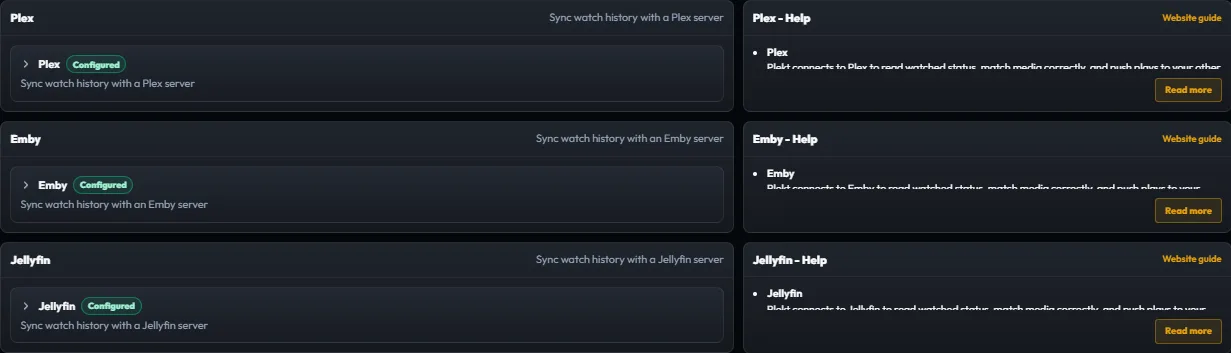
| Service | What Plekt uses it for | Inbound events |
|---|---|---|
| Plex | Library state, playback, watch history, artwork context, and playlists | Built-in WebSocket notification channel and scheduled checks |
| Emby | Library state, playback, watch history, resume progress, and playlists | Webhooks plus polling |
| Jellyfin | Library state, playback, watch history, resume progress, and playlists | Webhooks plugin plus polling |
The server running Plekt must reach each configured URL.
Playlists can sync two ways with any of the three servers, chosen per playlist. Automatic playlists are sent one way, from Plekt to the apps.
The Plex, Jellyfin, and Trakt account connection flows also work when Plekt is opened by a plain HTTP address on your local network.
Shows or films that share a title are kept apart by their TMDB, TVDB, and IMDb ids. When two Plex shows share a title, Plekt uses the one whose ids match, including a show Plex titles with a country tag such as The Assembly (UK). When a title alone cannot tell two items apart on Emby or Jellyfin, Plekt skips that server instead of writing to both; a title with a year such as Scrubs (2026) finds only that show.
When a browser test succeeds but background sync does not move, test the same hostname, port, and protocol from the Plekt host.
The connection checklist
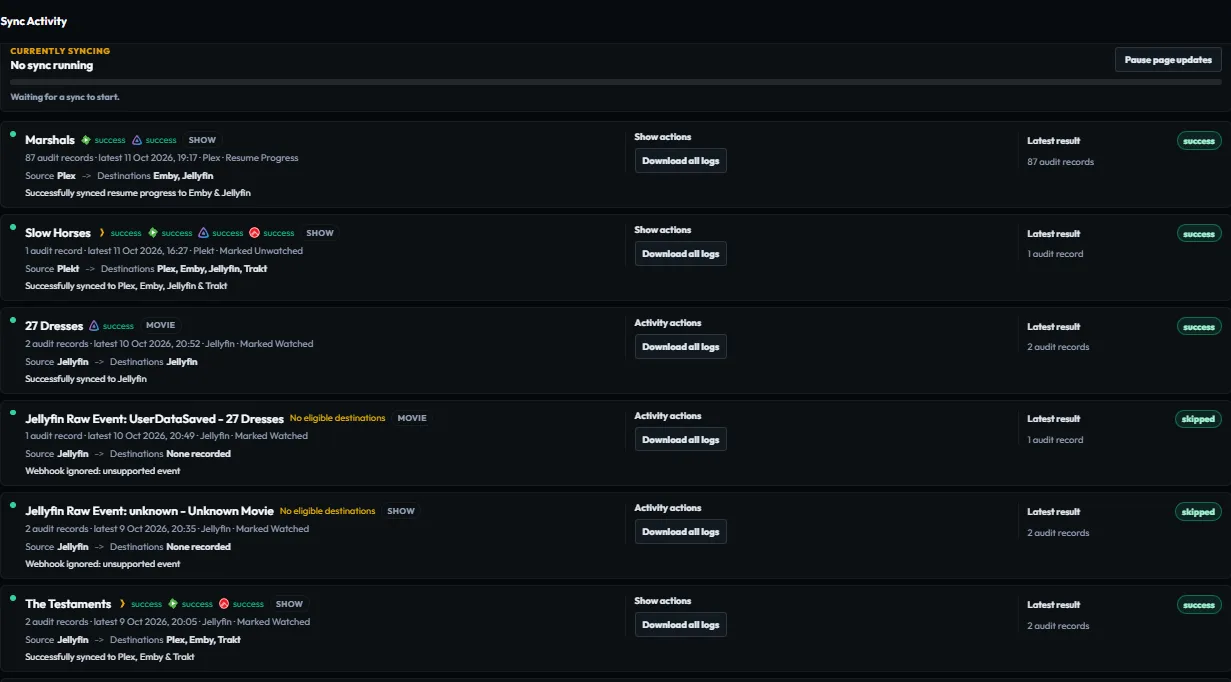
For every integration:
- Open the matching group in Settings.
- Enter the URL, credentials, key, or token requested by that provider.
- Save and wait for the connection test to finish.
- Confirm the server/library or provider status is healthy.
- Import or refresh only after the connection test succeeds.
- Make one small change and verify it in Sync Activity.
Keep the first test narrow.
It is easier to identify a bad URL or unmatched item before a large import fills the activity log.
Plex
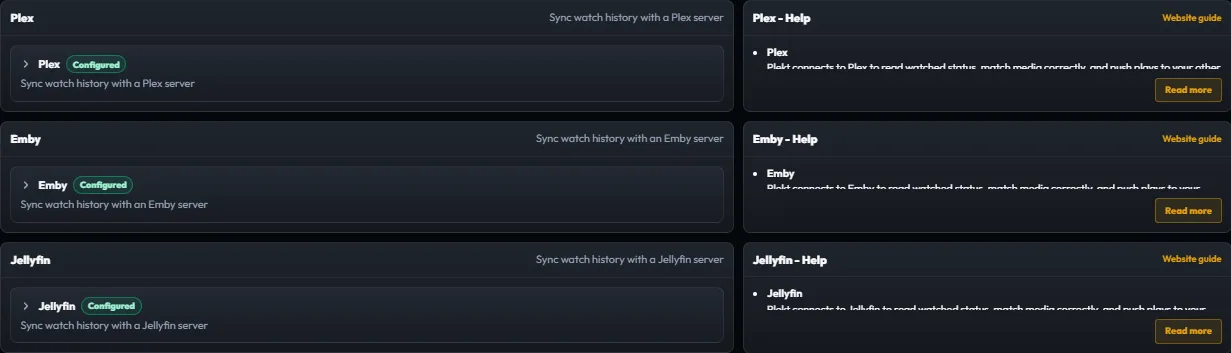
Plex needs a server URL and token, or the account connection flow.
Plekt attaches to Plex’s notification WebSocket once the URL and token are configured, so no external listener is required for watched/unwatched changes.
In Plex, turn off Refresh library metadata periodically.
During a rematch, Plex can reset watched state, and Plekt would otherwise treat that reset as a real unwatch.
Configure the connection in Settings → Media servers.
The Plex card also contains the optional Sync watchlist with Plex toggle. It uses Plex’s account-level Universal Watchlist; Plex is the only provider used for Watchlist sync.
Open Settings → Webhooks → Setup Guides for the provider-specific notification, webhook, and scheduled-task guidance.
If Plex events are absent, check the token, server URL, WebSocket status, and then the missing-event steps.
Emby

Connect with the server URL and a user login, or provide an API key and user ID.
The setup guide does not store the password after obtaining a token.
In Emby, open Preferences → Notifications → Webhooks, add the full Plekt webhook URL, and enable:
- playback: Start, Pause, Unpause, and Stop;
- users: Mark Played and Mark Unplayed; and
- Send All Properties, so resume fields are present.
Leave unrelated event categories off until the core event path works.
They add noise without improving watched-state sync.
Jellyfin

Connect with Quick Connect, a username/password flow, or an API key and user ID. Jellyfin 12
uses its modern MediaBrowser authorization header for account and manual-token access; the
manual API-key and Quick Connect credential paths remain supported. Plekt keeps browser
artwork requests separate from server-side authentication.
The password is not stored after token exchange.
Install the Webhooks plugin from the Jellyfin plugin catalog.
Add a Generic Webhook named plekt, paste the URL, and enable:
- Playback Start, Playback Progress, Playback Stop, and User Data Saved;
- optionally Item Added for newly added media catch-up;
- item types Movies and Episodes; and
- Send All Properties (ignores template).
The body must be JSON.
Jellyfin may label the payload text/plain.
Plekt still reads it as JSON and records malformed bodies in Sync Activity.
Jellyfin still participates in watched-state and optional personal-rating sync, but it is not a Watchlist provider. Explicit watched and unwatched events remain authoritative, with scheduled polling used as a conservative backstop when webhook delivery is unavailable.
Plekt keeps the native item ID from a Jellyfin playback event available when it sends a watched-state update back to that server.
Trakt

The live Trakt connection is two-way.
A change in Trakt, Plex, Emby, Jellyfin, or Plekt can flow through the local canonical record.
It can then flow out to the other connected services.
Choose Connect Trakt in Settings → Connections → Trakt.
Open the displayed activation link, enter the device code, and approve access.
A normal user does not need a Trakt VIP subscription or personal API application for the built-in device app.
When Plekt is the Trakt bridge, disable Emby and Jellyfin Trakt plugins and their scheduled Trakt tasks.
Multiple writers can reapply older state after Plekt has already corrected it.
Temporary Trakt write failures are retried. Before a retry resends a watched play, Plekt checks Trakt history around the recorded play time; if Trakt already has that play, it treats the destination as delivered instead of creating a duplicate.
See Trakt changes that keep coming back.
If a Trakt episode is reported as not_found, use show-match repair and retry
from Sync Activity. If the show is genuinely unavailable in Trakt, dismissing the Trakt error
skips only that destination and preserves the local archive.
When Personal Rating Sync is enabled under Settings → Sync, Trakt also participates in the separate two-way 1–10 rating sync. That rating domain has its own queue and conflict rules; it is not the watched-state sync described above.
Tautulli

Tautulli is an optional import source for completed Plex history. Configure its server URL, API key, and user, then preview the import before committing it.
Plekt creates a watch-history backup before the import, matches rows by provider identity where possible, and keeps ambiguous rows in the preview for review. It does not silently overwrite existing watch history.
Private-list and rating sync
Personal Rating Sync is optional and uses the authenticated Plex, Emby, Jellyfin, and Trakt accounts for two-way rating reconciliation. Plekt remains the conflict authority, and provider outages do not change local ratings or watched state.
Plex Watchlist Sync is a separate optional toggle. Its first pass safely unions Plekt’s canonical movie/show Watchlist with Plex’s account Watchlist; later complete snapshots reconcile changes. Emby and Jellyfin do not offer an equivalent account-level watchlist, so their old watchlist projections are not supported.
See Watchlist, Ratings, and Settings → Sync → Personal Rating Sync for recovery and queue details.
Seerr

Connect Overseerr or Jellyseerr from Settings → Connections.
When available, detail pages show request actions for movies and shows.
Availability and request status come from Seerr; watched state remains Plekt’s responsibility.
Metadata and artwork providers
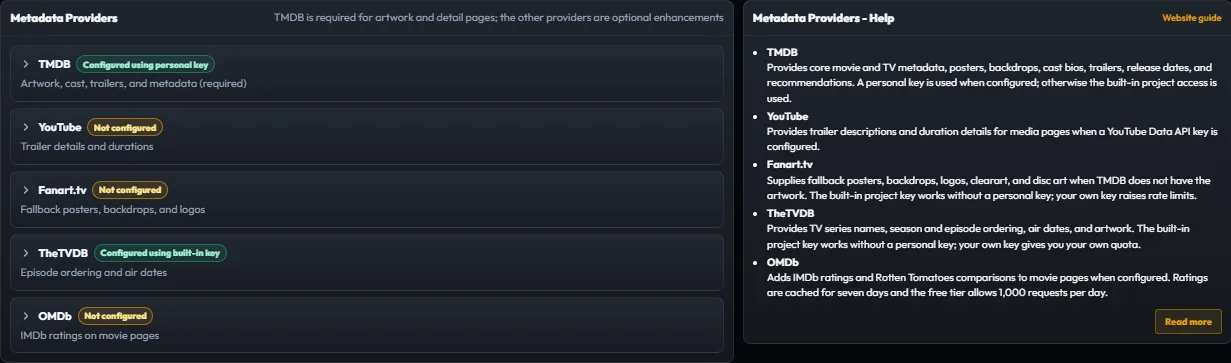
- TMDB supplies posters, backdrops, cast, summaries, search, trailers, reviews, and recommendations. Add a TMDB API key first for the richest details.
- TheTVDB supplies show identity, season/episode numbering, air dates, and fallback art.
- Fanart.tv supplies community-curated poster, backdrop, and logo fallbacks.
- OMDb is optional and can provide IMDb rating badges.
- YouTube is optional and can supply trailer metadata.
Plekt caches metadata and artwork locally.
A provider outage can affect new enrichment without erasing the local watch archive.
Use Settings → Metadata to refresh after correcting a key.
Verify a connection without guessing
After any integration change, create one known test:
- Use a title that is already present in the local library.
- Make one watched, unwatched, or resume change from the source.
- Wait for the webhook or polling interval.
- Open Sync Activity.
- Read each destination result and follow the matching troubleshooting link if it is skipped or failed.