
TV Shows groups tracked episode records into series and adds season, progress, and next-airing context.
Find a show
- Open TV Shows in the sidebar.
- Use the Posters only switch at the front of the control bar to fold every show to its poster; select a folded poster to open its card in place.
- Search by show title or use the sort and A–Z controls.
- Switch between the card grid, list view, and overview cards.
- Use Hide Fully Watched to remove shows with no remaining unwatched episodes.
- Use Hide Ended to remove ended shows when focusing on continuing series.
- Select a full show card to open its TV show media page.
The Posters only choice is remembered for TV Shows separately from Movies. When it is on, select a folded poster to open that show card in place; the other cards stay where they are. A further selection opens the TV show media page. See the Shared library controls.
The Posters only switch and both hide toggles sit directly in the control bar; there is no separate Options menu.
Large libraries load progressively as you scroll. The shows already on screen stay in place while more load, and while the list re-sorts by Next Airing. Saved pages are refreshed after 30 minutes even when nothing was watched, so next-airing dates stay current. On a show media page, season episode details load when a season is expanded so the initial summary is not held up by every season’s episode payload.
Show cards and progress
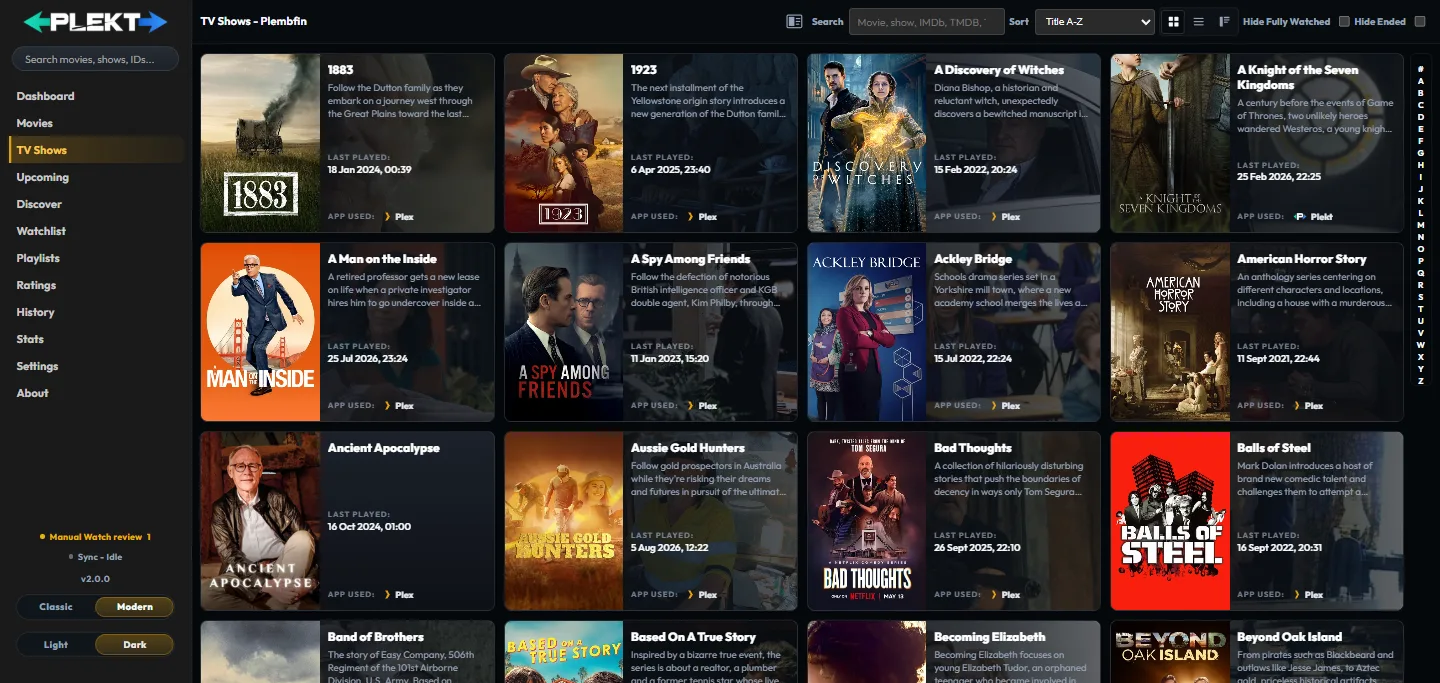
A TV library card represents the show. It can include the show’s summary, watched-versus-total progress, last-play information with the App Used for the latest watch, and the next airing date. The list view can expand a show into seasons and episodes, but the selected show’s media page is where title-level actions live.
Unaired episodes are not treated as completed watches by a bulk action. If the title, episode count, or progress is wrong, correct the series identity with Fix Match before changing a whole season.
TV show media page
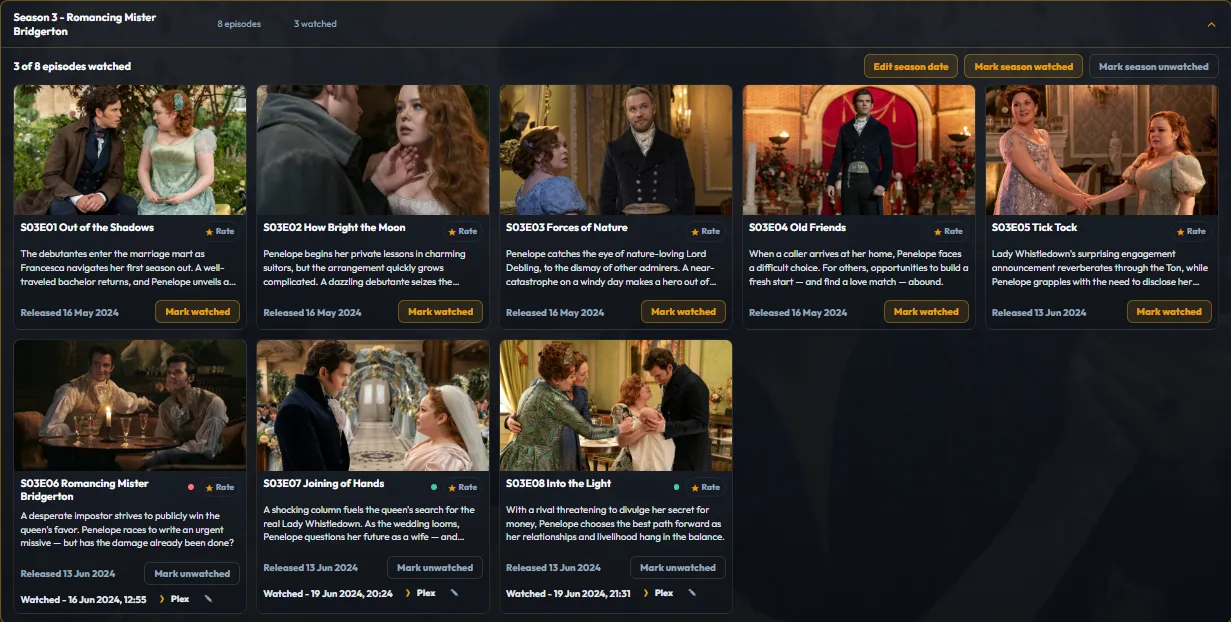
The child TV Shows media page guide is about one selected series, including its header, seasons, episodes, progress, actions, detail sections, and page-specific Appearance controls.
See Media details and actions for the shared explanation of watch dates, matching, artwork, and sync behavior.