
The Dashboard separates three kinds of information that are easy to confuse: what is playing now, what is ready to continue next, and completed watch history.
The Up Next queue can contain both movies and TV episodes. Resume progress is part of that queue; it is not a separate history rail.
The sections are independent, so the same title can appear in live playback, Up Next, and the durable archive when each state is valid.
Live changes are reconciled against the affected cards, so unchanged dashboard cards keep their artwork and layout while another title updates. A cleared resume item is hidden immediately and stays dismissed while provider data catches up; if the clear fails, the item is restored.
Page structure
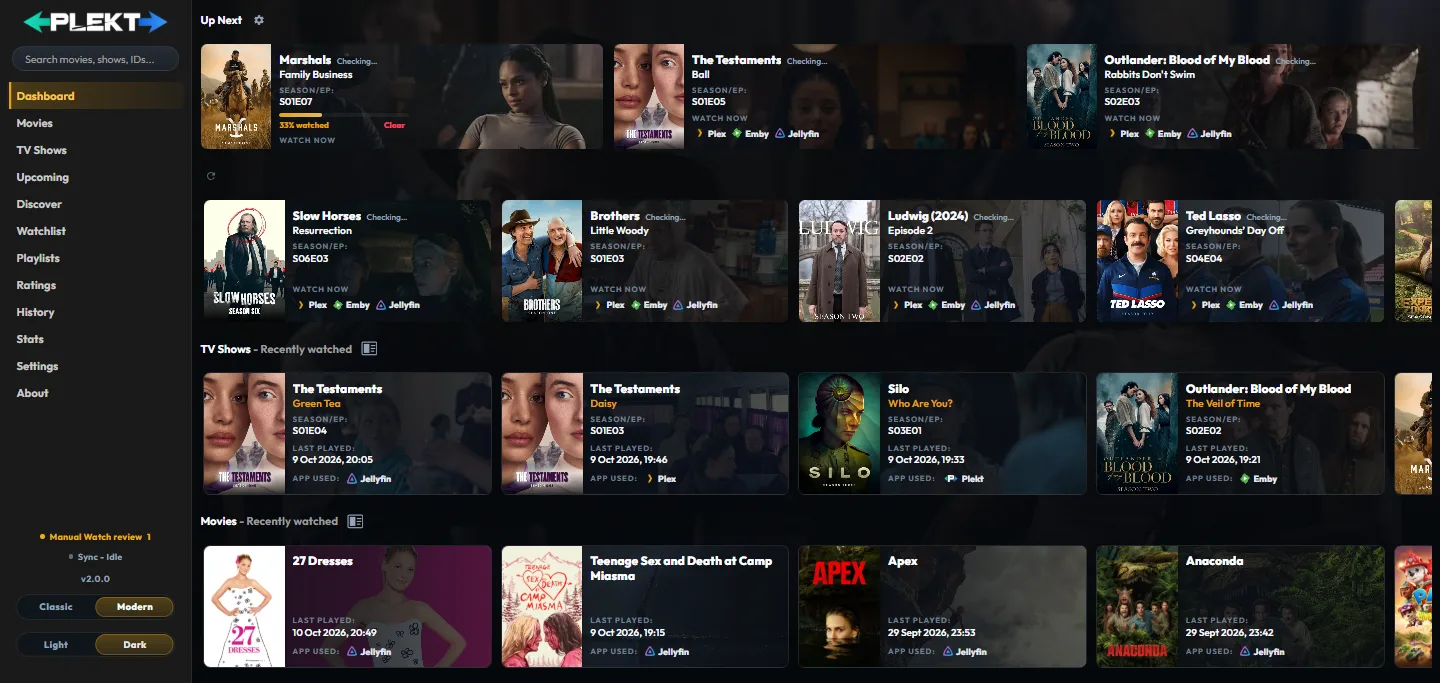
The sidebar opens the main pages.
The Dashboard content is arranged in this order:
- Now Playing for active media-server sessions. In the Modern style the top panel holds up to three items: live sessions first, then part watched items, then other Up Next items in any slots left. While nothing is playing it features only those items and its heading reads Up Next; a featured item is hidden from the Up Next rail so it never shows twice. The cog beside the heading sets which kinds are allowed and how many items (1 to 3) it holds; see Now Playing panel options.
- Up Next for movie and TV continuation items, including saved resume progress and released episodes selected from tracked shows.
- TV Shows – Recently watched for recent completed TV watches.
- Movies – Recently watched for recent completed movie watches.
If there is no saved resume progress or next-up item, Up Next is omitted. The sidebar Sync indicator is a shortcut to Sync Activity.
Dashboard history uses Card View by default. The Dashboard has no separate Appearance layout control. In the Modern style (see Appearance) the cards are drawn over each title’s backdrop artwork, and the page takes the backdrop of the top item.
Global Search
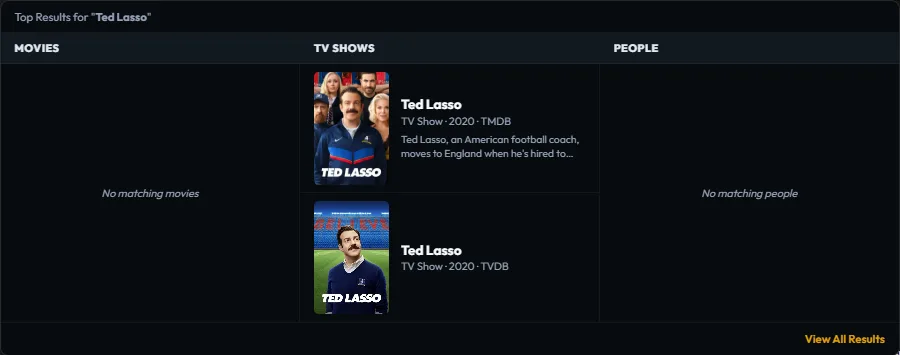
Global Search belongs to the persistent Dashboard controls, not to the History archive. Open the search field in the left sidebar, enter a title, person, provider ID, or collection name, then choose the result type when you need a narrower match.
Local titles are prioritised and marked when they already exist in the archive. A movie or show opens its normal detail page; a person opens the person page. Search finds and explores titles, while watch-state corrections stay on the selected local title’s actions.
Now Playing
Now Playing is session information, not completed watch history.
It can show the title, the episode title with its season and episode, source service, current position, duration, and a progress bar for active sessions reported by Plex, Emby, or Jellyfin.

To use it:
- Start or resume a title in a connected media server.
- Return to the Dashboard while playback is active.
- Check the source badge, position, and duration.
- Select the title to open its media details when you need more actions.
Plekt refreshes active sessions independently of the normal scheduled sync: the poll is more frequent while something is playing, and opening the Dashboard or returning to a background tab requests a fresh snapshot immediately.
A provider failure is kept separate from a genuinely empty session result, so a temporary connection problem does not falsely report that playback stopped. Disappearing from Now Playing does not, by itself, create a completed watch.
Completed playback and sessions beyond the active-session window are removed from Now Playing, so stale cards do not linger after playback stops.
Now Playing panel options
In the Modern style, the cog beside the panel heading opens its options. Every change saves at once and applies to the whole server:

- Allow part watched items here and Allow Up Next items here are both on by default. Part watched items fill the free slots first, then the other Up Next items.
- The item count (1 to 3) sets how many cards the panel holds, live sessions included.
An item shown in the panel is hidden from the Up Next rail, so nothing appears twice.
If a session never appears, follow Now Playing is empty or stale.
Up Next

Up Next is the dashboard’s mixed continuation rail. It combines actionable resume records for movies and episodes with released next up episodes from tracked shows. Resume cards are ordered by their latest progress update; next-up cards follow with deterministic show, season, and episode ordering.
Each show appears once. A part-watched episode with a known position replaces that show’s next-up card, and when several episodes of a show are part-watched, the most recently updated one is kept. The episode or movie that is playing right now is hidden from Up Next while it shows in Now Playing, and returns when playback stops.
The one exception is a rewatch from an older season: when your latest play is behind the furthest episode you have watched and the episode after it is released and unwatched, that episode gets its own card beside the show’s ordinary next episode. The provider lists hold one episode per show and follow the rewatch.
Each card shows its real episode name, with the season and episode code directly under it, and the media servers where it is available. A resume card shows its progress bar above the Watch Now apps; Up Next cards carry no availability line. Watch Now links open a matching item in Plex, Emby, or Jellyfin when a connected server can provide one. A cached local resume card remains useful without a provider connection.
When Sync Up Next to media apps is enabled in Settings → Sync → Sync tuning, Plekt queues one coalesced background push whenever the unified queue changes. Additions, reorderings, and resume-progress changes are sent to Plex Continue Watching, Emby Continue Watching, and Jellyfin Next Up. The push never removes an item just because Plekt’s queue does not list it: an item leaves a media app only when you clear its progress or remove it in Plekt, and the sync message reports how many app-only items were left in place. The worker uses the latest queue and continues even when the Dashboard is closed. Use Sync Up Next for an explicit immediate push; turning the setting off leaves those provider lists unchanged while Plekt’s own Up Next view remains available.
If a provider feed fails, Plekt keeps the last good observation and shows a compact source-status message instead of deleting the queue. An offline server is skipped by the push and a new push is queued as soon as it answers again. The builder deduplicates matching resume and next-up observations, keeps shows that share a title but have different TMDB or TVDB ids as separate cards, and does not merge a re-release or reboot from a different year.
Use the card’s More options menu for Mark Watched, Rate, Add to watch list, Clear Progress when resume exists, or Remove from Up Next. Removing a card updates the local rail immediately and attempts to clear the connected-app resume state through the provider endpoint when that target is available. Marking watched commits locally first and then dispatches through the normal sync path.
Dismiss and restore an Up Next item
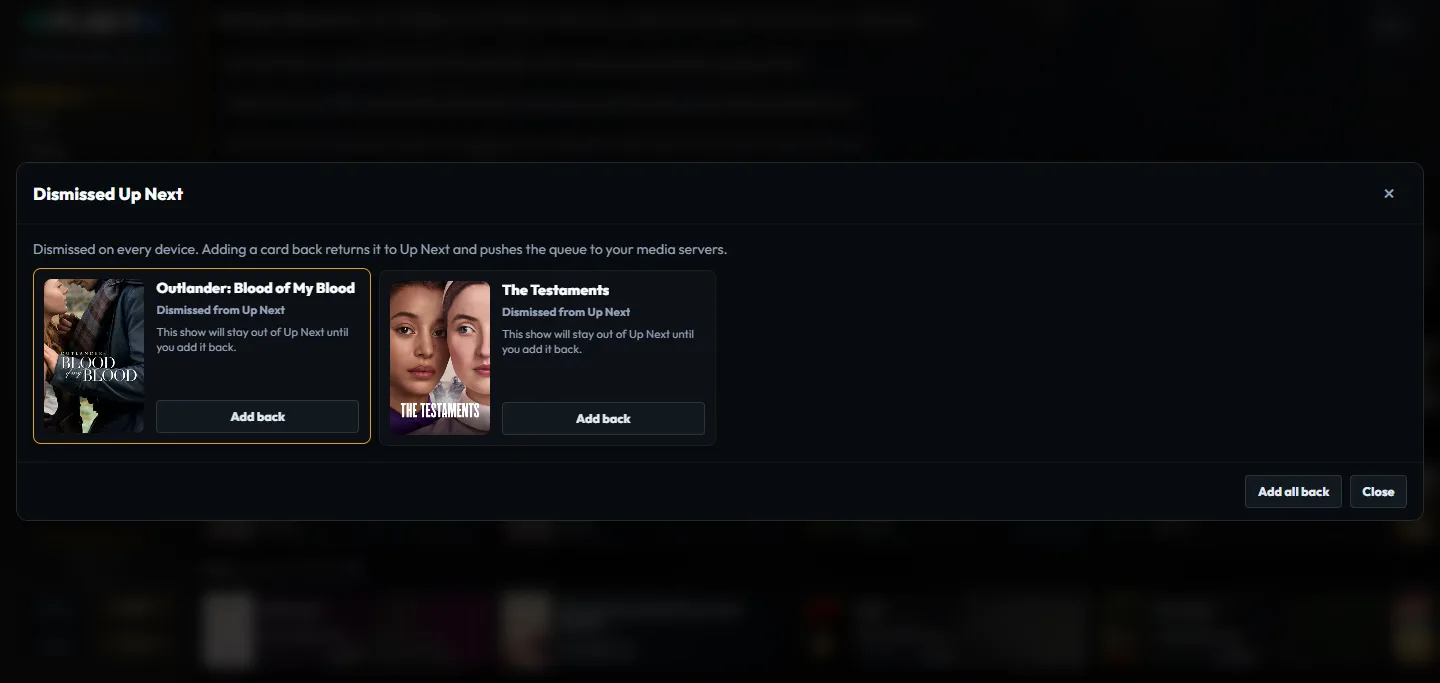
Remove from Up Next is the dismissal action. When a show has two cards because of a rewatch, Plekt asks whether to hide only that card’s season or the whole show; a hidden season appears as its own entry in the dismissed list. After you confirm it, Plekt hides the card immediately, clears its local resume progress, marks it unwatched, and records the dismissal on the server. The dismissal therefore applies to the same account on every device rather than only the browser where it was made. Plex Continue Watching and Emby Resume also receive a native removal when the matching item is available; Jellyfin Next Up is a calculated feed with no per-item removal endpoint, so Plekt keeps the local queue authoritative while that feed catches up.
When one or more items are dismissed, the count button beside the Up Next heading opens Dismissed Up Next, which shows up to six cards per row on wide screens. Choose Add back for one item or Add all back to restore the cards; Plekt then pushes the restored queue to the connected media apps. A dismissal is a “not now” choice, not a permanent delete: the item can return automatically after newer genuine playback progress is recorded.
Resume progress lives in Up Next. A resume card appears while its progress has not crossed the configured watched threshold and keeps the actions needed to decide what happens next:
- Watch Now or Resume opens the title so playback can continue in the connected media service.
- Clear Progress removes the resume marker without marking the title watched.
- Mark Watched records a completed watch and sends it through the normal sync path.
The card’s More options menu also exposes the personal rating, watchlist, and removal actions.
The watched threshold and minimum resume position are controlled by Sync Tuning.
Changing those values affects how future playback is interpreted. For an incorrect percentage, follow Up Next resume progress is missing or wrong.
TV and movie history
The bottom rows are the recent durable completed-watch archive.
They are not a list of active files on a media server.
A title appears after Plekt has recorded a watch event.
- The TV Shows row shows one full card per episode. With Posters only on (Modern style), consecutive watches of one show fold into a single poster with an “N episodes” count badge and the older episodes’ posters peeking out behind it; select it to expand the run into one card per episode, in place.
- The Movies row lists recent movie watch activity.
- A rewatch remains a separate event in History while the library card remains one title.
- Selecting a poster opens the media detail page.
An item can appear in Up Next with resume progress and also in completed history when it has a previous watch.


Dashboard history cards
Dashboard TV and movie history rows always use Card View. Each card combines the poster, title, watch information, and state in a compact layout. Episode cards use the episode’s own still as their backdrop, falling back to the show’s backdrop, and show the season and episode code directly under the episode name and Last Played directly above the app used. A history card no longer repeats a Watched Twice or Watched N Times line; the Library pages keep it.
The Posters only button beside each “Recently watched” title folds every card in that row to its poster. Select a folded poster to open that card in place, closing whichever was open, and the other cards stay where they are; a further click opens the title as normal. Selecting a folded run opens the whole run. The choice is remembered per row in the current browser, in both styles.
The Dashboard view is fixed; use the Movies media page or TV Shows media page for library-specific poster, list, and overview controls. Appearance is available on those media detail pages for optional content sections.
A useful daily check
After a watch or a manual correction, read the Dashboard first.
Then open the newest row in Sync Activity if a destination needs an explanation.
The Dashboard is the summary.
Sync Activity is the evidence for each destination.