
Start here
Guides
Choose a focused path for setup, daily use, connections, maintenance, or recovery.
Start here
Getting started
Install Plekt and complete the first-run setup.
Getting started
Before you install
Have these ready: A host that can reach each media server by its configured URL. Persistent storage for Plekt's /data directory. A strong administrator password. A Plex token, Emby credentials/API key, or Jellyfin credentials/API key if you are connecting a media server during setup. The browser is only the client. A connection can look reachable from your laptop while the Plekt host cannot reach it. Network testing…
Getting started
Install with Docker Compose
Create a folder for Plekt and put a private .env file beside the Compose file: dotenv ADMIN PASSWORD=choose a strong private password Create docker compose.yml : yaml services: plekt: image: plembfin/plekt:latest container name: plekt ports: "5056:5055" volumes: ./data:/data environment: PLEKT PUBLISHED PORT: "5056" ADMIN USERNAME: admin ADMIN PASSWORD: "${ADMIN PASSWORD:?Set ADMIN PASSWORD in .env before starting}"…
Getting started
Install with Node.js
For a bare metal install, use Node.js 22.19.0 or newer. From the repository root: bash npm install npm start Open http://localhost:5056 . For connected service testing, start Plekt from a host or network enabled terminal. A restricted sandbox can reach the local page while still blocking requests to Plex, Emby, or Jellyfin. Use npm run dev during development when you want server files to reload as they change.
Getting started
Claim the instance
On a fresh install with no administrator password, Plekt shows: Claim this Plekt instance Create the administrator username and password there. Claiming is a one time action and should only be done by the person who controls the server. After claiming, Plekt opens the resumable setup guide. You can reopen it from the Reopen Onboarding link in Settings → Tools.
Getting started
Complete the guided setup
Work through the stages in this order when possible: 1. Overview — confirm the instance is running and see which optional services are available. 2. Trakt — optionally connect Trakt or import an existing history archive. 3. Metadata — add a TMDB key first; add TheTVDB, Fanart.tv, OMDb, or YouTube when you need their additional data. 4. Media servers — optionally connect and test Plex, Emby, Jellyfin, or more than…
Getting started
Confirm the first sync
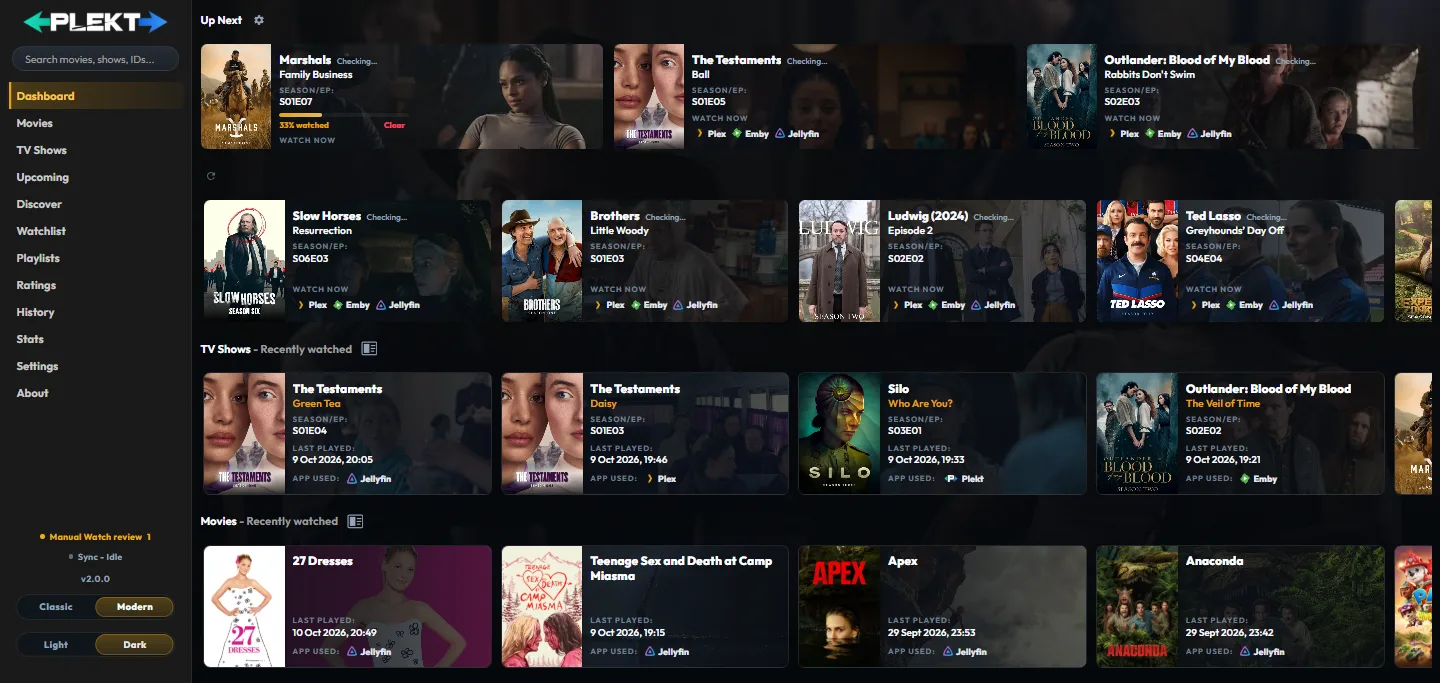
The dashboard is the quickest health check after a server is connected. It separates Now Playing , a mixed Up Next queue containing resume items and released TV episodes, and completed TV and movie history rows. Before a media server is connected, use the setup steps and Settings to confirm the instance itself is healthy. The sidebar sync indicator is only a summary. For the reason behind a result, open Sync…
Getting started
What to do next
Understand the sync model Connect media servers and providers Choose a focused guide Browse Discover and private lists Back up and maintain the instance
Understand the app
The sync model
How Plekt becomes the local source of truth.
The sync model
The canonical record

When Plekt receives a valid event, it normalizes the title and identifiers, records the source, and updates local watch state. A record can include: media type and canonical title; watch date and source platform; provider identifiers used for matching; watched/unwatched state; resume progress and playback duration where available; and the delivery history associated with the event. The local record gives the system…
The sync model
The event lifecycle
The normal path for a watched or resume update is: 1. Plex, Emby, Jellyfin, Trakt, or a Plekt action produces an event. 2. Plekt validates the payload and normalizes its identifiers. 3. The event is written to local history and playstate. 4. Matching connected destinations are selected. 5. Each delivery is queued with retry and duplicate protection. 6. Sync Activity records a result for every destination considered.…
The sync model
Watched state and resume progress
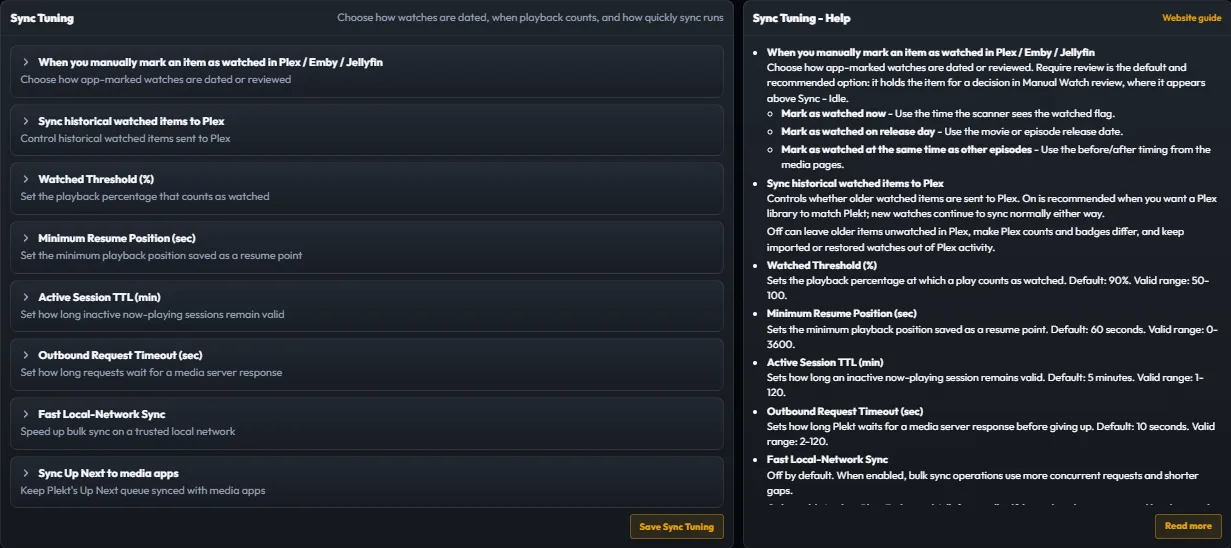
Watched state is not the same as a resume marker. A stopped item can have a resume position without counting as watched. When playback passes the configured watched threshold (90% by default), Plekt records a completed watch and propagates it. If a media server reports Mark Played without enough timing information to choose a trustworthy watch date, the Require review policy holds the event in Manual Watch review…
The sync model
Rewatches and duplicate protection
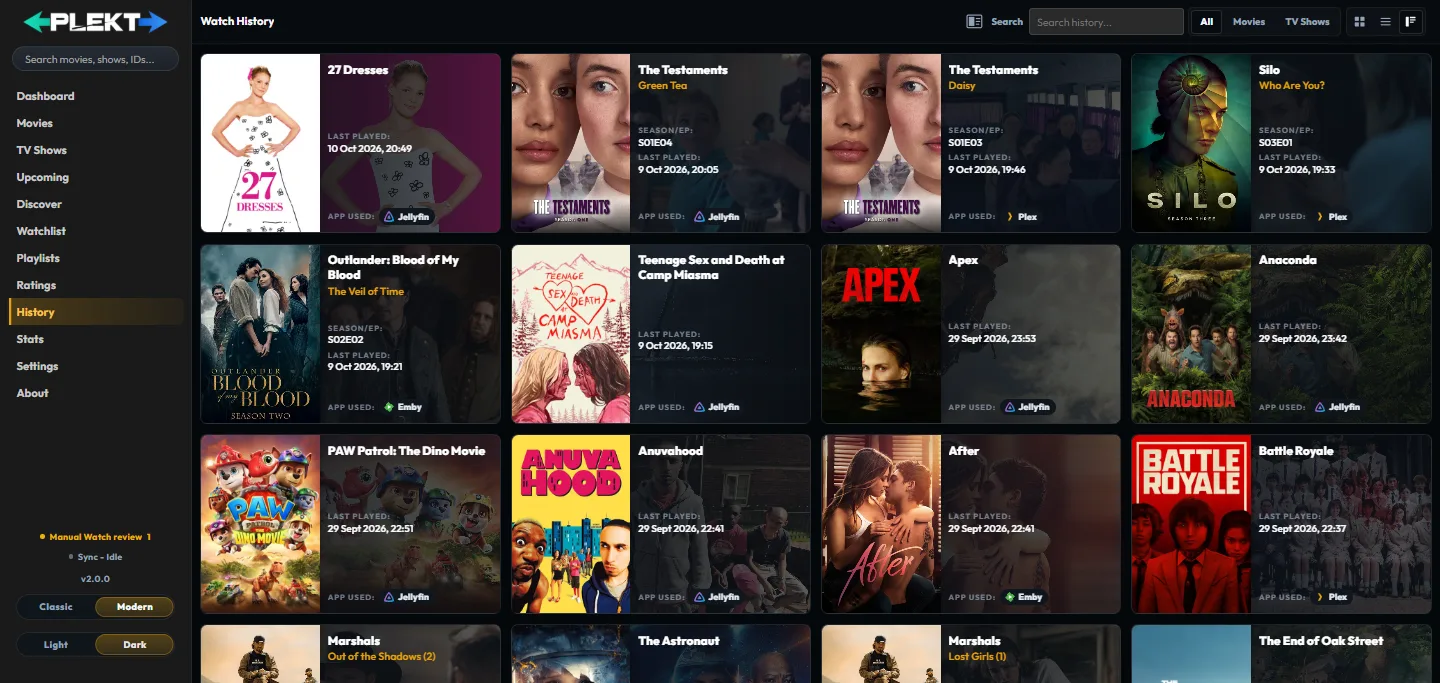
Plekt keeps separate watch events so a real rewatch is not lost. Duplicate delivery of the same event is collapsed instead of creating noisy history rows. Retrying a network request is therefore safe, while a new play at a later time remains visible in History and Stats. When a Trakt write has a temporary failure, Plekt retries it. Before retrying a watched play, it checks Trakt history near that play's recorded…
The sync model
Webhooks, polling, and scheduled work
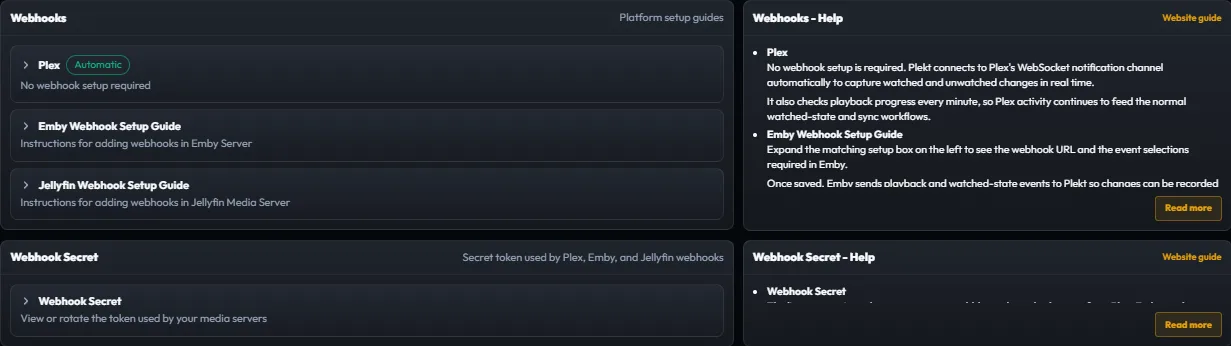
Plex can be observed through its built in WebSocket notification channel and scheduled checks. Emby and Jellyfin use webhooks with scheduled polling as a backstop. The scheduler also handles active sessions, catch up scans, metadata maintenance, and backups. Webhook delivery is fast but depends on the sender's URL and secret being correct. Polling is slower but can recover changes when a webhook was offline. For…
The sync model
Read Sync Activity
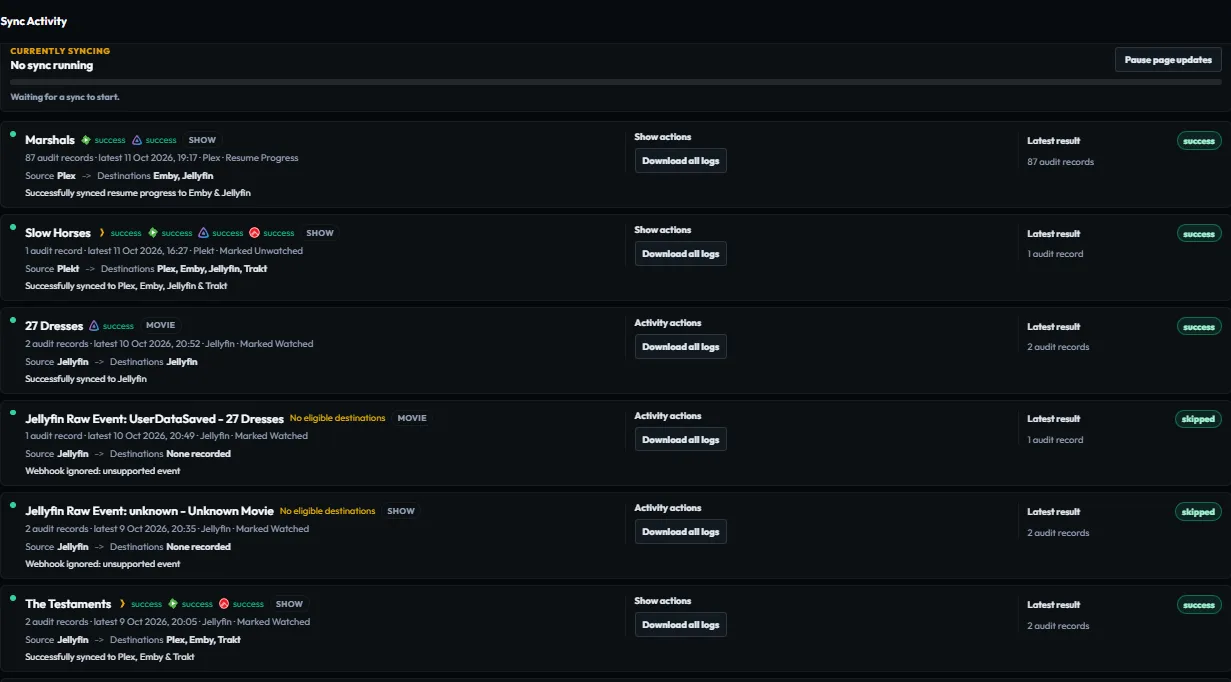
Sync Activity is the operational view for the model. Use it when you need to answer “what happened?” rather than just “is the app connected?” Each row is grouped by movie or show and can show: the media item and action; the source platform and time; the destinations that were selected; success, skipped, partial, or failed results; the reason a destination was skipped or failed; and a retry or log action when one is…
The sync model
Important boundaries
The server running Plekt must reach the media server URLs. Browser reachability alone is not enough. Webhook URLs need the full secret token or an accepted authentication header. A local Plekt backup protects Plekt's archive; it is not a replacement for each media server's own database backup. Disable Emby or Jellyfin Trakt plugins when Plekt is the Trakt bridge. Two writers can reintroduce stale state or create…
Dashboard and libraries
Dashboard
Now Playing, Up Next, watch history rows, and the default Card View.
Dashboard
Page structure
The sidebar opens the main pages. The Dashboard content is arranged in this order: 1. Now Playing for active media server sessions. In the Modern style the top panel holds up to three items: live sessions first, then part watched items, then other Up Next items in any slots left. While nothing is playing it features only those items and its heading reads Up Next ; a featured item is hidden from the Up Next rail so…
Dashboard
Now Playing

Now Playing is session information, not completed watch history. It can show the title, the episode title with its season and episode, source service, current position, duration, and a progress bar for active sessions reported by Plex, Emby, or Jellyfin. To use it: 1. Start or resume a title in a connected media server. 2. Return to the Dashboard while playback is active. 3. Check the source badge, position, and…
Dashboard
Up Next

Up Next is the dashboard's mixed continuation rail. It combines actionable resume records for movies and episodes with released next up episodes from tracked shows. Resume cards are ordered by their latest progress update; next up cards follow with deterministic show, season, and episode ordering. Each show appears once. A part watched episode with a known position replaces that show's next up card, and when several…
Dashboard
TV and movie history

The bottom rows are the recent durable completed watch archive. They are not a list of active files on a media server. A title appears after Plekt has recorded a watch event. The TV Shows row shows one full card per episode. With Posters only on (Modern style), consecutive watches of one show fold into a single poster with an "N episodes" count badge and the older episodes' posters peeking out behind it; select it…
Dashboard
Dashboard history cards
Dashboard TV and movie history rows always use Card View. Each card combines the poster, title, watch information, and state in a compact layout. Episode cards use the episode's own still as their backdrop, falling back to the show's backdrop, and show the season and episode code directly under the episode name and Last Played directly above the app used. A history card no longer repeats a Watched Twice or Watched N…
Dashboard
A useful daily check
After a watch or a manual correction, read the Dashboard first. Then open the newest row in Sync Activity if a destination needs an explanation. The Dashboard is the summary. Sync Activity is the evidence for each destination.
Dashboard and libraries
Shared library controls
Controls shared by the Movies and TV Shows libraries.
Shared library controls
Shared library controls
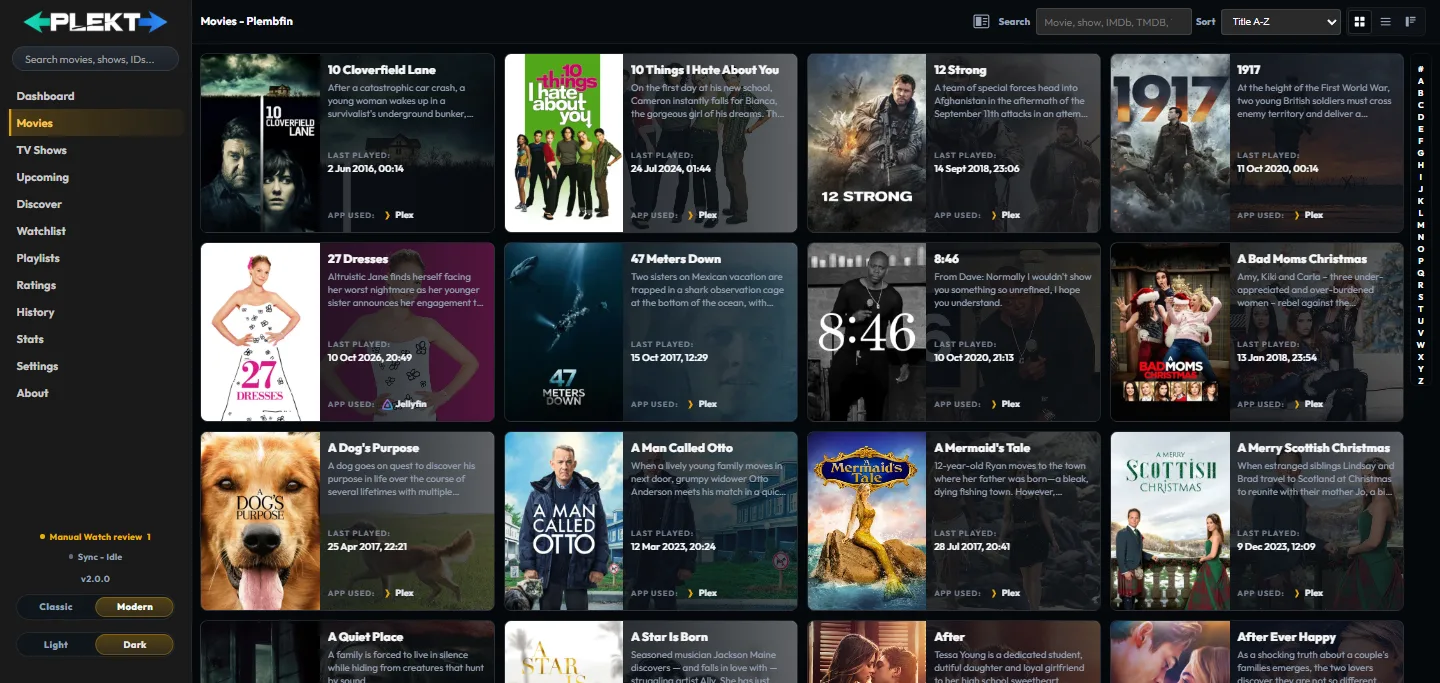
Both libraries provide a similar set of browsing controls. The exact available sort values depend on the page and the loaded data. Size leads the control bar and changes how many poster cards fit across the page. Search narrows the loaded titles by the title and available library fields. Sort changes the order, including title, watch date, and the available next airing order. Poster, list, or overview card view…
Shared library controls
The shared card controls
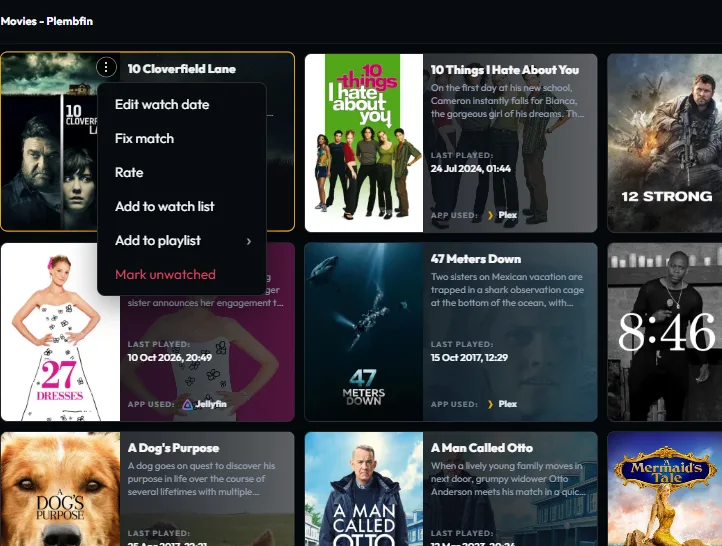
The three dot menu is the quick action menu on movie, TV, and supported History cards. On a desktop pointer, hover the poster card to reveal the button. Open it and choose: Edit watch date to inspect, change, add, or remove a recorded viewing date; Fix match to correct the provider identity attached to the local record; Rate to set a private local score; Add to watch list to save a title for later; Add to playlist…
Media and discovery
Discover
Browse TMDB-backed rails, filters, and title actions.
Discover
Discovery rails
The default Movies & TV view can show: Recommended for you , based on movies and TV shows watched in the last 12 months; Trending movies ; Trending TV shows ; Now playing movies; and Airing today TV shows. The exact titles change as TMDB updates its feeds. The page reports the number of results in each rail and uses horizontal scrolling for the poster card rows. Discover is a feed, not a second local library.…
Discover
Type and genre filters
Use Type to switch between: Movies & TV for the combined feed; Movies for movie rails and movie genres; and TV shows for TV rails and TV genres. The Genre selector changes with the chosen type. Select All genres to return to the default feeds, or choose a genre to request filtered movie or TV rails. Refresh forces a new feed request when you want to recheck the current snapshot. Discover uses a short lived local…
Discover
Open and save a title
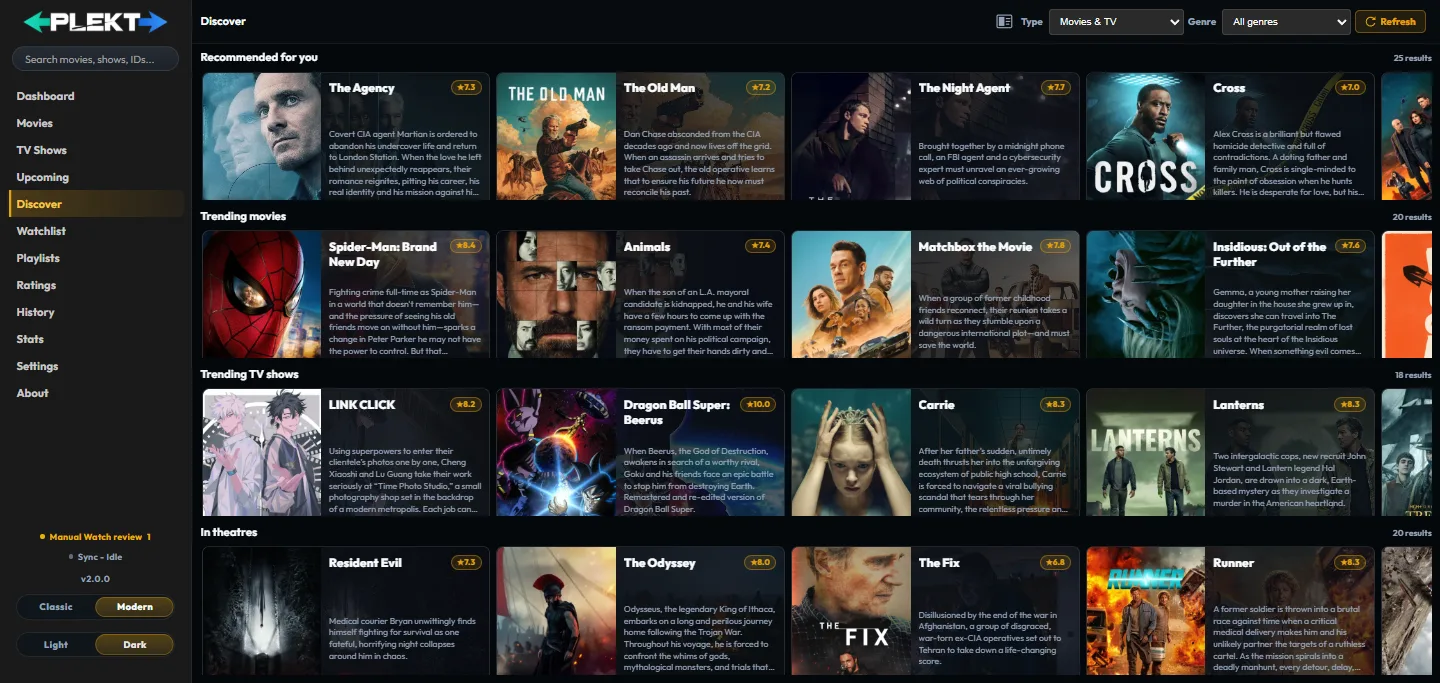
Select a card poster or title to open the standard movie or TV detail page. Cards also keep the common More options action available. From a Discover card or detail page you can: add a movie or show to Watchlist ; choose a personal Rating from 1 to 10; add the title to a Playlist ; and choose Don't recommend to exclude it from the personalized recommendation rail. Those actions are private local choices. They do not…
Media and discovery
Watchlist
Save movies and shows for later.
Watchlist
Open Watchlist
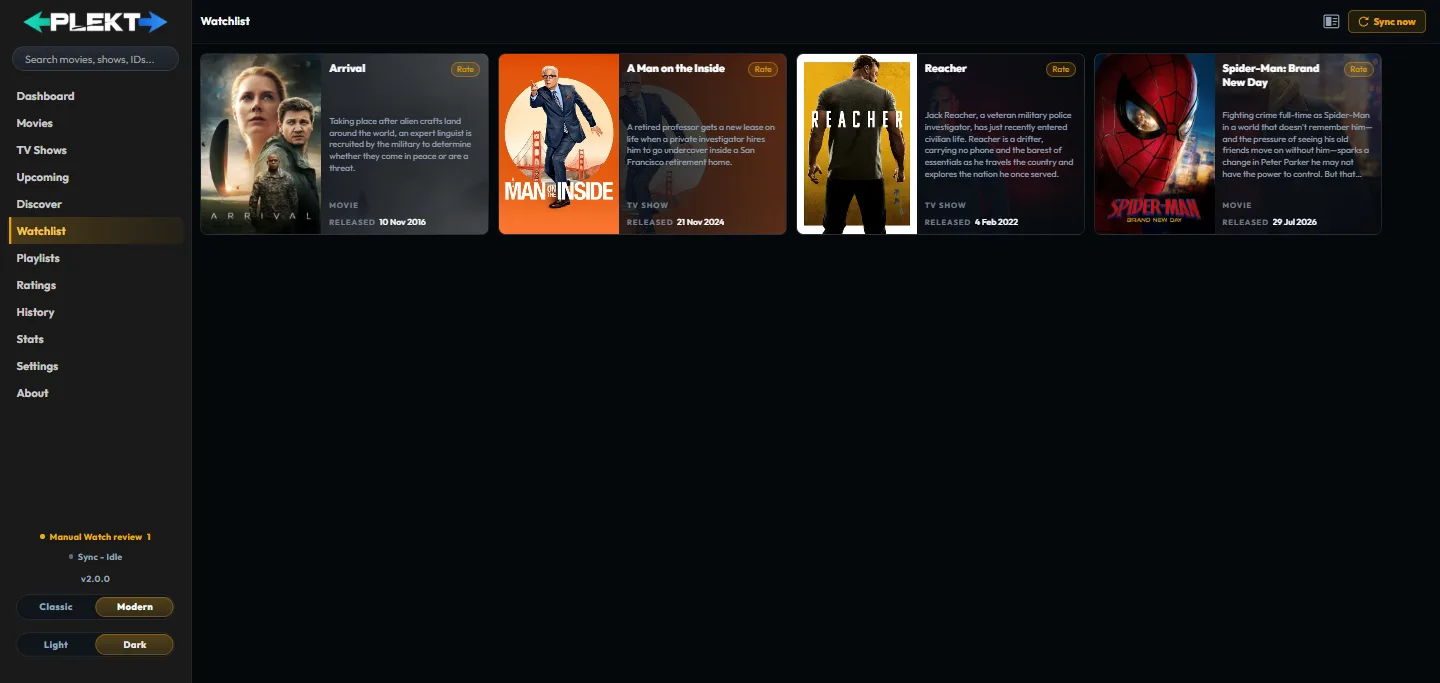
Select Watchlist in the sidebar. Cards load from Plekt's local private data store, so the page remains useful even when a provider feed or media server is temporarily unavailable.
Watchlist
Saved media cards

Cards represent a movie or a TV show. Select the poster or title to open the normal detail page. The card can also expose the current personal rating and list membership without changing the underlying watch record.
Watchlist
Add a title
Use Add to watch list from a movie or TV detail page, or use the corresponding card action from Discover or another supported media card. When the request succeeds, the action changes to Remove from watch list and the title appears on this page. Episode detail pages expose personal rating actions, not Watchlist actions. Adding a title does not mark it watched, add it to a connected server, or change its TMDB, TVDB,…
Watchlist
Rate or remove a card
Use Rate to open the 1–10 personal rating control. The score is also visible from the Ratings page. Use Remove to take the item out of Watchlist; removing it does not remove its rating, watch history, or custom list membership. The page updates in place after either action. If the card does not change, reopen Watchlist and check the signed in instance before trying the action again.
Watchlist
More options and detail actions
Use More options when you need an action that is not shown as a primary card button. Open the title detail page when you need watch dates, artwork, Fix Match, Force Sync, or the full Tools menu. Personal actions and maintenance tools are intentionally separate.
Watchlist
Empty state and privacy
An empty Watchlist means no titles are currently saved; it does not mean the library or Discover feed is empty. Watchlist data belongs to the local Plekt instance and does not become a watched event. If Plex sync is enabled, its provider changes appear as Watchlist sync activity, but they are not watched state destinations. For the related pages, see Ratings and Playlists.
Media and discovery
Ratings
Keep private 1–10 scores for movies, shows, and episodes.
Ratings
Open Ratings
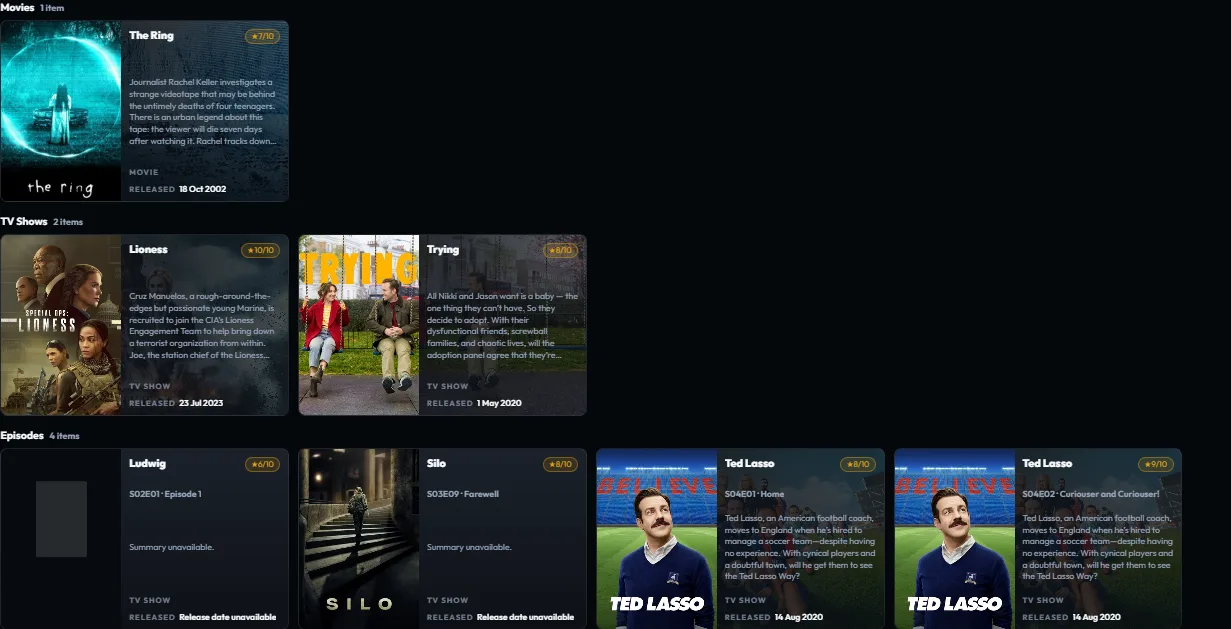
Select Ratings in the sidebar. The page groups existing scores under Movies , TV Shows , and Episodes , so a show level score is not confused with one of its episodes.
Ratings
Rate a title from a card
Choose Rate on an unrated card or Rate again on a rated card. Select a value from 1 to 10 and save it. The updated score is written to Plekt's local private data and the card remains in its media type group.
Ratings
Rate from a detail page

On a movie or TV detail page, use the personal rating control in the media facts area. It shows the current value when one exists and opens the same 1–10 chooser when you want to change it. Episode detail and episode card actions use the same personal rating domain. This control is distinct from TMDB, IMDb, or TheTVDB provider ratings.
Ratings
Change or remove a rating
Use Rate again to replace a score. Use Remove rating to clear the personal score. Neither action removes the title from Watchlist or Playlists, changes watch history, or sends a watched state correction to a connected service.
Ratings
Episode identity and groups

Episode scores retain the show, season, and episode coordinates. Separate provider records for the same episode therefore resolve to one personal rating rather than creating a second score for the same viewing unit.
Ratings
Relationship to watched state
A rating is personal metadata. It does not mark a title watched, create a watch event, add resume progress, alter the provider match, or sync a watch state change through Plex, Emby, Jellyfin, or Trakt. For saving and grouping titles, see Watchlist and Playlists.
Media and discovery
Playlists
Collect titles into ordered playlists and sync them to Plex, Emby, and Jellyfin.
Playlists
Open Playlists
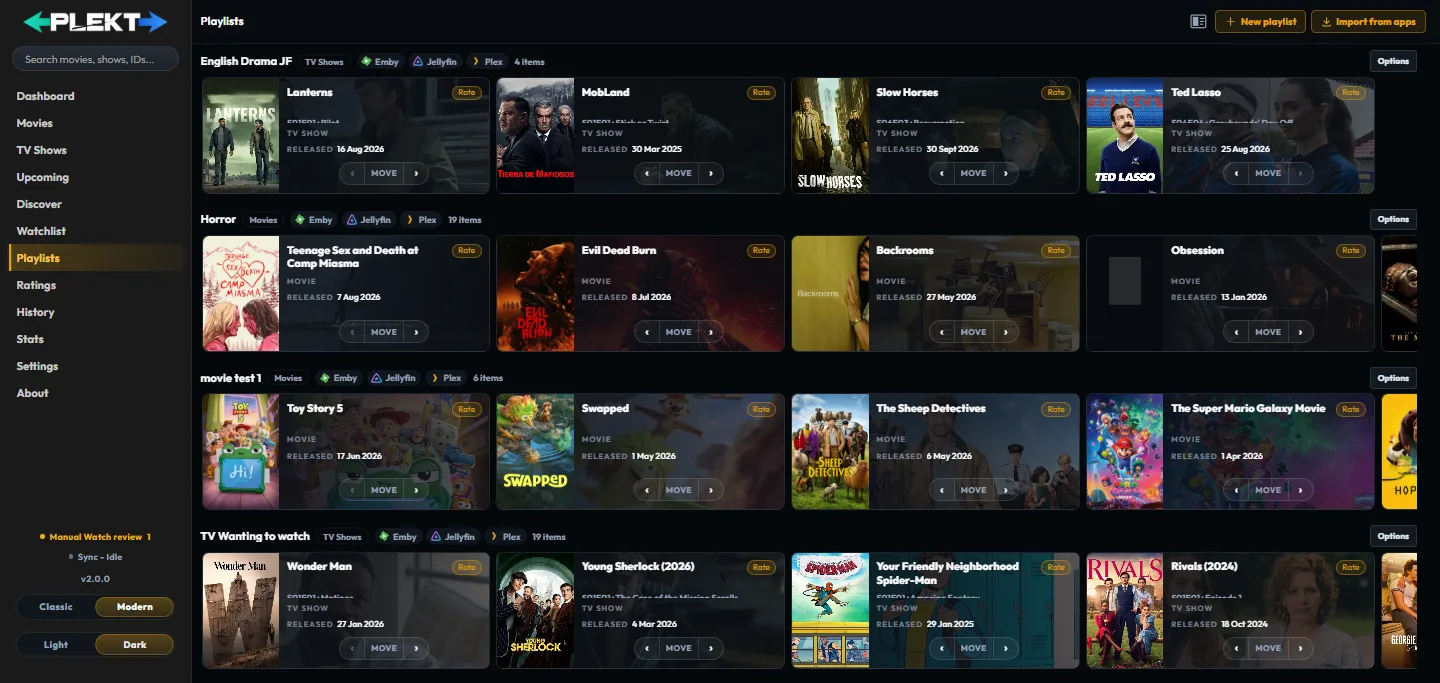
Select Playlists in the sidebar, just above Ratings. Each playlist is its own rail. The first four show together; more playlists follow below. Old /custom lists links open this page. Each heading shows: the playlist type: Movies , TV , or Mixed ; an app badge for each app it syncs to. Hover a badge for its status: synced, waiting for the first sync, failed, or not found. Plekt only means no app is selected; the item…
Playlists
Create a playlist
1. Choose New playlist , then Pick items (or Automatic , see below). 2. On Name and type , enter a name and choose Movies , TV , or Mixed . The type cannot change later. 3. Leave Remove items once watched on to drop titles from the playlist once you watch them, or turn it off to keep them. 4. On Apps , tick the apps to sync to. Only connected apps can be ticked; see Settings → Media servers. Leave every app unticked…
Playlists
How app sync works
Each app's copy holds only titles in that app's library. A title the app lacks stays in the Plekt playlist with a Missing from note (a Missing badge on posters) and joins the app's copy once it arrives. TV and Mixed playlists hold individual episodes, not whole shows. The app playlists follow Plekt's order, and moves made in an app are read back. A Plekt edit syncs a few seconds later. A background pass also runs…
Playlists
Add a movie or TV show
Use Add to playlist on a movie or TV detail page, or the Add to playlist submenu in a poster card's menu. Pick a playlist, or choose Create a new playlist . Only playlists that accept the title are offered, and automatic playlists are left out. Adding a show to a TV or Mixed playlist opens the episode picker. Tick episodes one by one or a whole season; episodes already in the playlist show ticked. New titles join…
Playlists
Reorder and remove titles

On desktop, drag a card within its rail. The other cards slide aside to show where it will land. On a touch screen, use the Move pill at the bottom of a full card. Remove from this playlist in the card menu removes the title from this playlist only. Other playlists, Watchlist, Ratings, the library, and watch history stay unchanged. Automatic playlists follow their rule, so their cards cannot be dragged or moved.
Playlists
Edit or delete a playlist
Edit renames the playlist or changes its apps. Unticking an app deletes the playlist from that app. An automatic playlist can also change its rule. Delete asks first, then moves the playlist to Recently deleted and deletes it from its synced apps.
Playlists
Recently deleted
The Recently deleted button (with a count) appears while a deleted playlist is waiting. It opens a list showing who deleted each playlist (Plekt or an app) and when. Restore brings the playlist back in Plekt and in every app it synced to. Delete permanently removes it for good. It cannot be undone. Delete all permanently clears the whole list after one confirmation.
Playlists
Privacy and watched state
Playlists are local choices. They never create watched events, change ratings, or change the sync identity of a title. For the other private workflows, see Watchlist and Ratings.
Media and discovery
Media details and actions
Watch dates, Fix Match, artwork, sync actions, and related content.
Media details and actions
Page actions
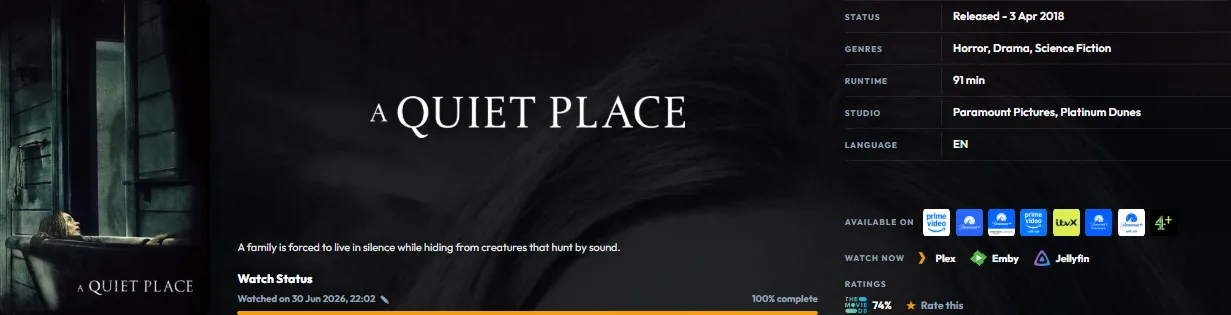
The top action bar keeps personal actions visible. Open Options for watch state, sync, artwork, matching, and information controls for the current title. TV pages also show Hide Spoilers beside the show level actions: Hide Spoilers hides the synopsis and artwork for unwatched episodes while you inspect a show. It changes presentation only. Force Sync opens a title scoped sync operation. Use it when one title needs…
Media details and actions
What the page can contain
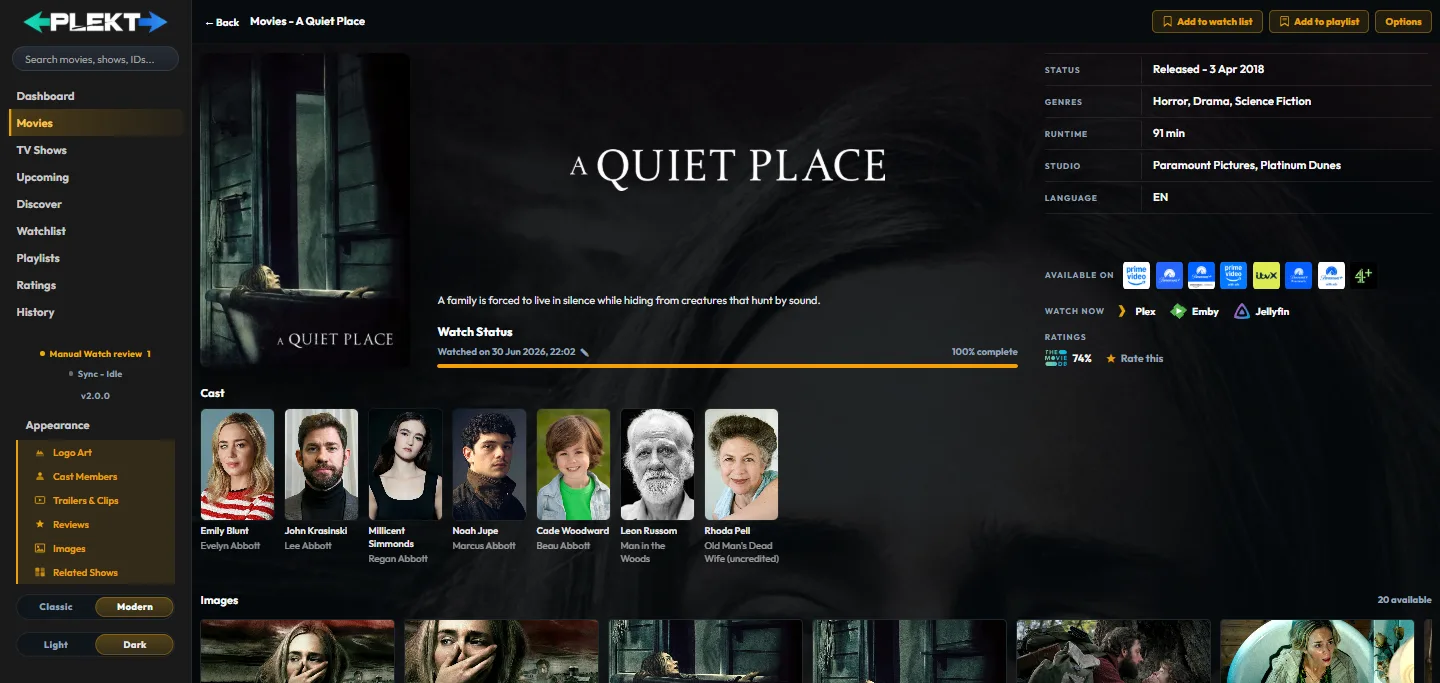
Depending on the media type and configured providers, details can include: poster, backdrop, logo, overview, and provider identifiers; a Media facts table for status (with the release date in the status row), genres, network or studio, language, and runtime; TMDB, TheTVDB, and optional IMDb ratings as logo badges with their scores; TV seasons, episodes, air dates, and watched progress; cast members and person pages;…
Media details and actions
TV detail controls
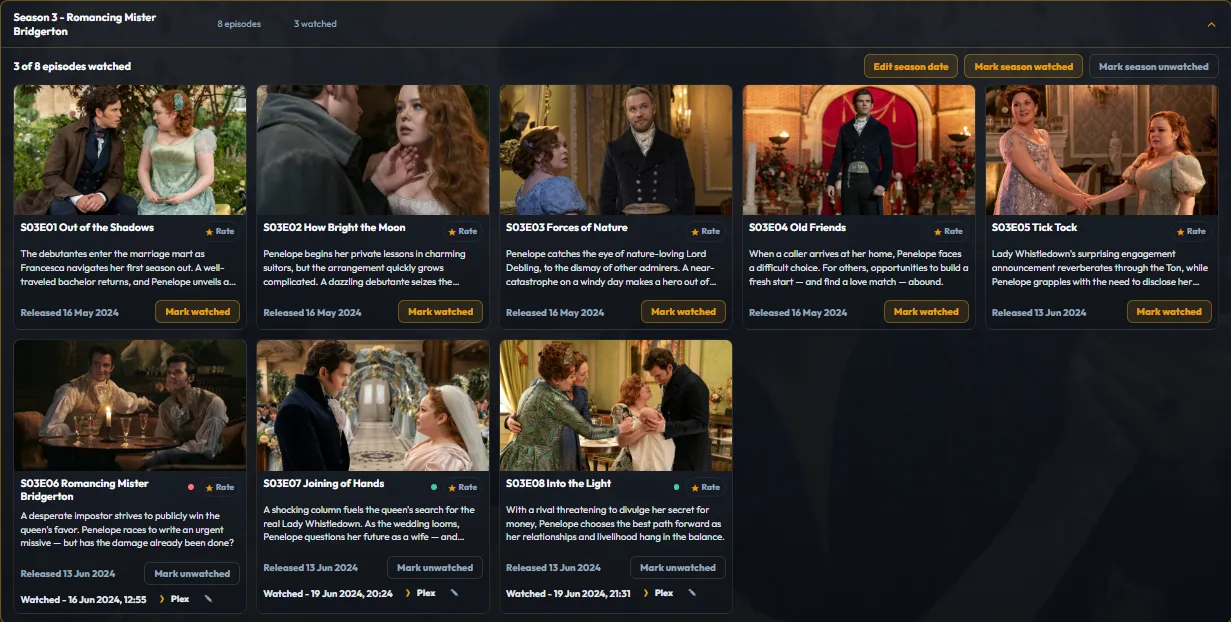
TV show details add season and episode controls below the identity and progress summary: Season rows load their episode details when expanded, so the initial show page can render without fetching every season before the header and summary appear. Expand All opens every season progressively; the season rows can also be opened individually. Season navigation, artwork, and episode loading stay incremental. Reserved…
Media details and actions
Watch actions and dates

Mark watched On a movie or episode, Mark Watched opens the date choices supplied by the app. These can include today, the release date, a date relative to a nearby episode, or a custom date. The saved date becomes part of the canonical watch record and is sent through the normal sync pipeline. On a TV show, a watch action can target one episode, one season, or the whole show. Bulk actions preserve each episode's…
Media details and actions
Watch actions and dates
Mark watched
On a movie or episode, Mark Watched opens the date choices supplied by the app. These can include today, the release date, a date relative to a nearby episode, or a custom date. The saved date becomes part of the canonical watch record and is sent through the normal sync pipeline. On a TV show, a watch action can target one episode, one season, or the whole show. Bulk actions preserve each episode's identity and do…
Media details and actions
Watch actions and dates
Mark unwatched
Mark Unwatched clears the current canonical watched state. It is a deliberate correction and is propagated to connected destinations. It does not delete the title's provider metadata.
Media details and actions
Watch actions and dates
Edit watch date
Use Edit watch date when the watch happened but the recorded date is incorrect: 1. Open the title detail page or the poster three dot menu. 2. Choose Edit watch date . 3. Select an existing viewing, or choose Add watch date for a genuine rewatch. 4. Set the date and time. 5. Save and wait for the action to finish. 6. Check the destination result in Sync Activity. Removing a date requires confirmation. If other dates…
Media details and actions
Fix Match
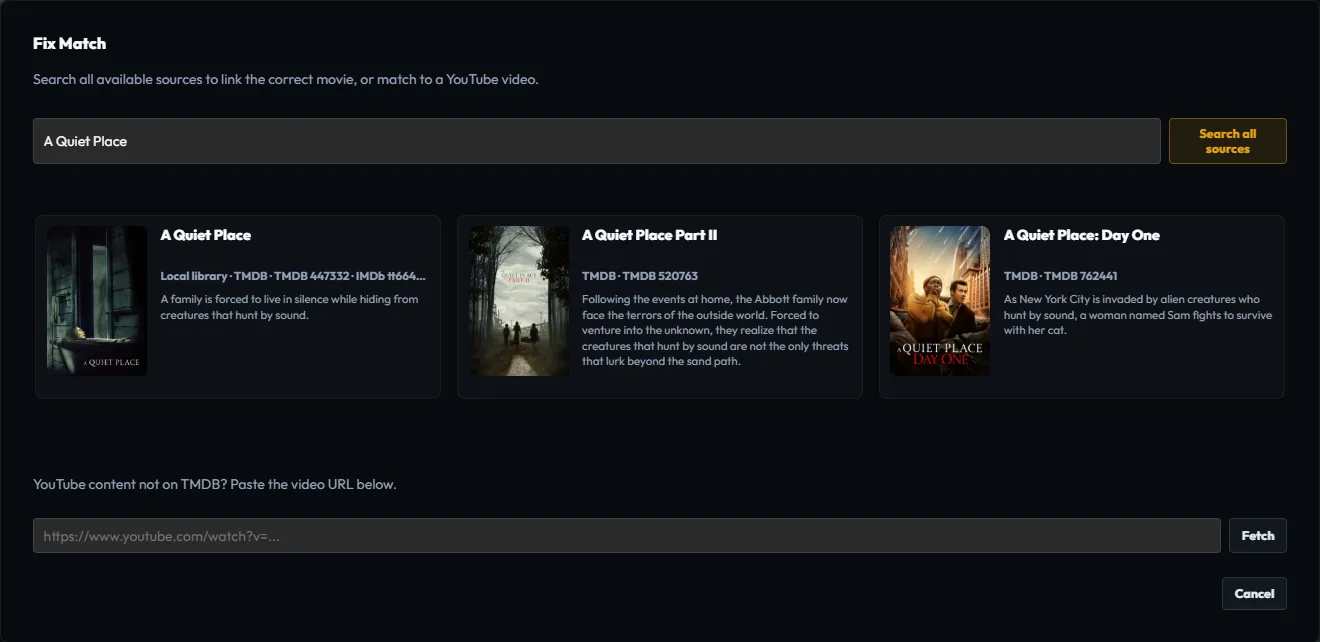
Fix Match changes the provider identity of the local record. Use it when a title is attached to the wrong movie or TV series. It is different from Edit Images . An artwork search changes the images being browsed, while Fix Match changes the identity used by the archive and future syncs. Fix a movie match 1. Open the movie detail page, or open the movie card's three dot menu. 2. Choose Fix Match . 3. Search by title,…
Media details and actions
Fix Match
Fix a movie match
1. Open the movie detail page, or open the movie card's three dot menu. 2. Choose Fix Match . 3. Search by title, year, or a distinctive part of the title. Search all sources checks your library and TMDB together. 4. Compare the result's year and metadata with the local movie. 5. Select the correct result. 6. Confirm the change. 7. Reopen the detail page and check its provider details, poster, and Sync Activity. The…
Media details and actions
Fix Match
Fix a TV show match
1. Open the show detail page. For an episode card, use the show level match action so the series identity is corrected for the whole show. 2. Choose Fix Match . 3. Search for the series and compare title, year, network, and season information. 4. Select the correct series. Each result card names the sources it came from; the show is rematched by its TheTVDB series. 5. Confirm the change. 6. Wait for the background…
Media details and actions
Edit Images
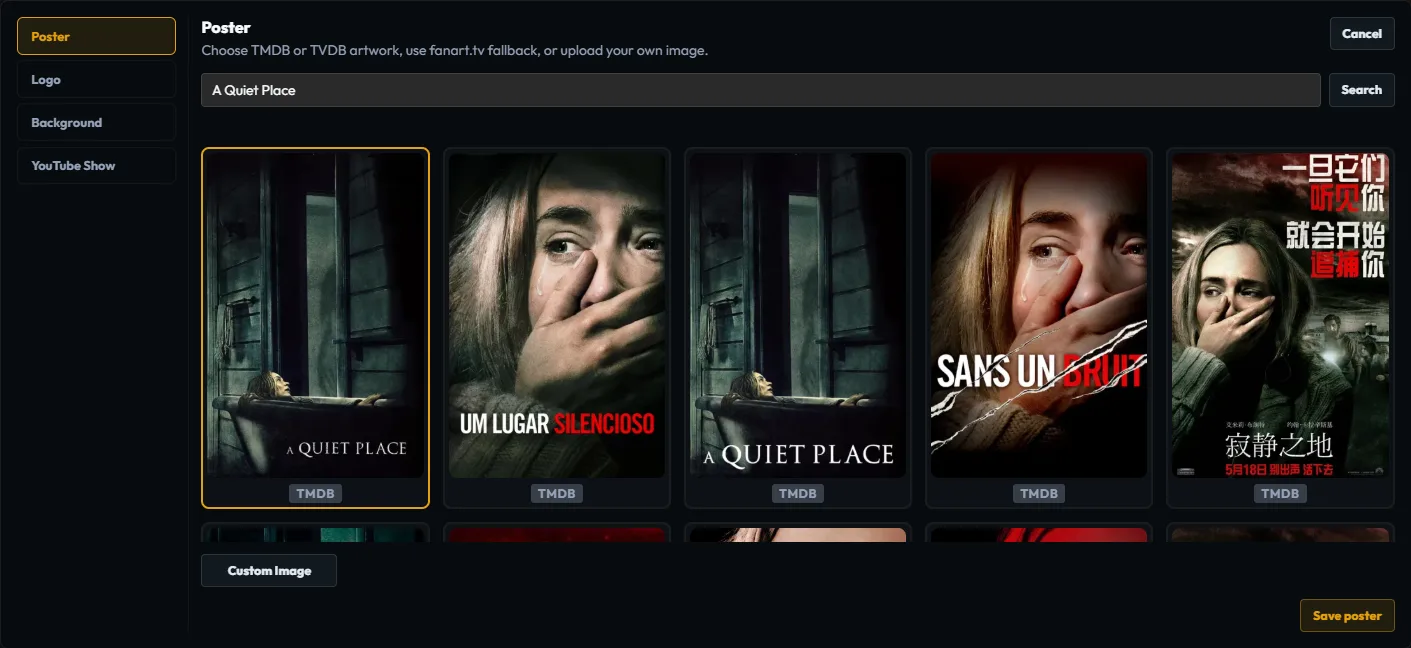
Edit Images changes the artwork displayed for the local record. The picker can browse poster, logo, and backdrop images from TMDB, TheTVDB, and Fanart.tv when those providers are configured. 1. Open the title detail page. 2. Choose Edit Images . 3. Select the artwork type to change. 4. If the provider identity is wrong, use the picker search to browse the correct title. 5. Select an image and save. 6. Reopen the…
Media details and actions
Personal lists and the Tools menu
Personal actions Use Add to watch list , Add to playlist , and the personal rating control to change local choices from the detail page. Watchlist and playlist actions apply to movies and TV shows; episode detail keeps the personal rating action. The labels reflect current state: a saved title offers Remove from watch list , a playlist member offers In playlist , and a scored title shows its current 1–10 value.…
Media details and actions
Personal lists and the Tools menu
Personal actions
Use Add to watch list , Add to playlist , and the personal rating control to change local choices from the detail page. Watchlist and playlist actions apply to movies and TV shows; episode detail keeps the personal rating action. The labels reflect current state: a saved title offers Remove from watch list , a playlist member offers In playlist , and a scored title shows its current 1–10 value. Watchlist, ratings,…
Media details and actions
Personal lists and the Tools menu
Tools menu
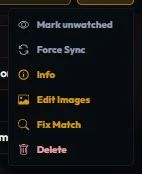
The permanent Options menu is present on movie and TV detail pages. Open it when the current title needs maintenance rather than a Watchlist, Ratings, or Playlists change. Force Sync Choose Force Sync when one title needs its local watched and resume state replayed or when you need to pull that title's state from a selected destination. It is title scoped and does not replace the broader tools under Settings → Sync.…
Media details and actions
Personal lists and the Tools menu
Force Sync
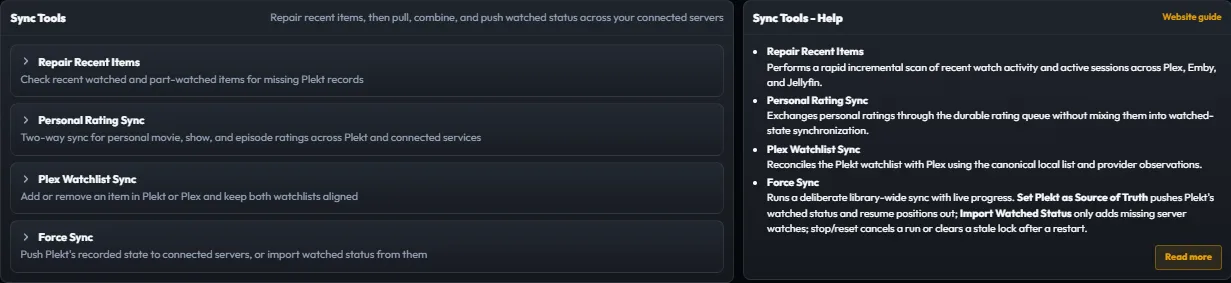
Choose Force Sync when one title needs its local watched and resume state replayed or when you need to pull that title's state from a selected destination. It is title scoped and does not replace the broader tools under Settings → Sync. For a single title: 1. Open Tools → Force Sync . 2. Choose the direction and destination shown by the dialog. Push sends Plekt's recorded watched or resume state out; pull imports…
Media details and actions
Personal lists and the Tools menu
Info
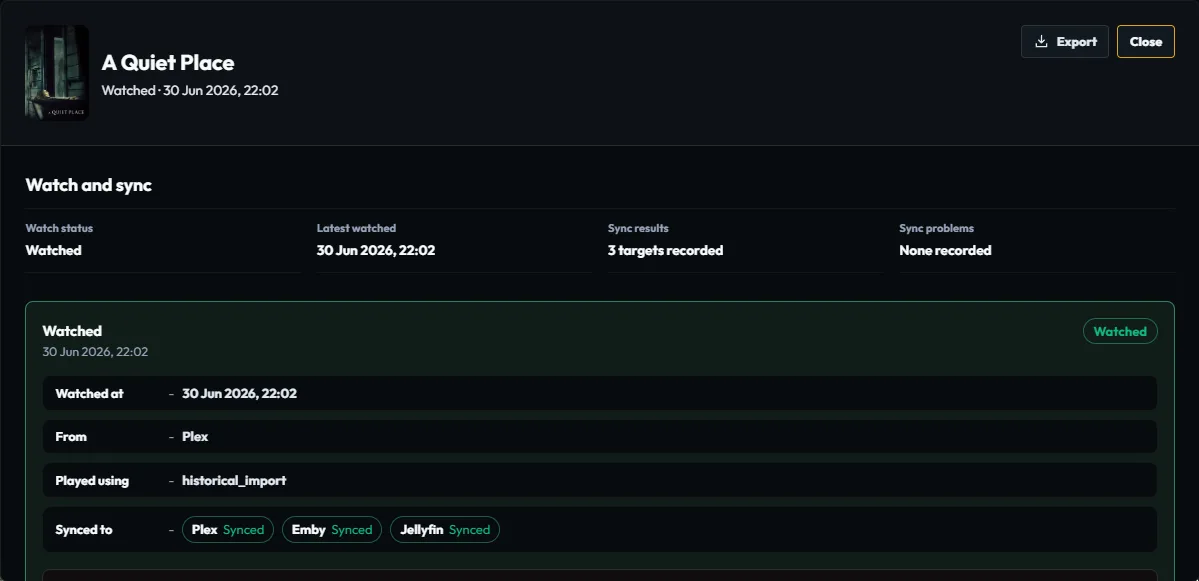
Choose Info to inspect the latest watched date, the current watch status, destination results, and available audit events. Use Export when you need to preserve the panel for an investigation. Info does not change the title.
Media details and actions
Personal lists and the Tools menu
Edit Images from Tools
Choose Edit Images when the provider identity is correct but the poster, logo, or background is wrong. Select an artwork type, choose a provider result or custom image, and save. The full workflow is documented in Edit Images.
Media details and actions
Personal lists and the Tools menu
Fix Match from Tools
Choose Fix Match when this record belongs to the wrong movie or TV series. Compare the candidate identity before confirming; the full movie and TV workflows are in Fix Match.
Media details and actions
Personal lists and the Tools menu
Delete
Choose Delete only when the local tracked title and its recorded history should be removed. It does not delete files from Plex, Emby, or Jellyfin. Review the confirmation scope and keep a verified backup first; for a wrong date or match, use the targeted corrections instead.
Media details and actions
Personal lists and the Tools menu
Merge
On a TV show, Merge folds one show's episode records into another. Compare the series identity and preview, make a backup, and confirm only when the records are truly duplicates. Merge changes local record structure and is harder to reverse than a metadata refresh. Movie and TV pages expose the actions appropriate to their media type. Merge is TV only; Delete is available on both. Create a backup first and read…
Media details and actions
Related content and lightboxes
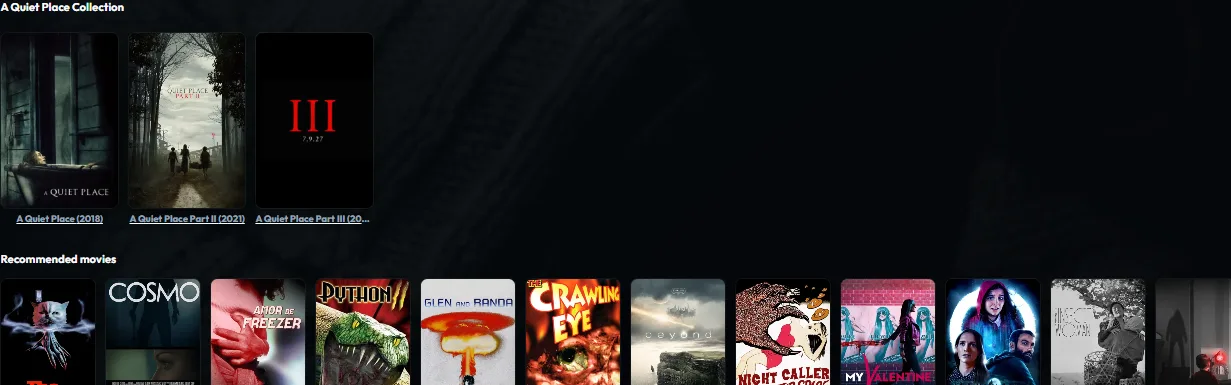
Select the main poster or an image tile to open the image lightbox. Trailer and clip tiles play in the media lightbox. Cast members open person pages with biographies and filmographies. Recommendations and related titles open their own detail context. Provider links open the external service for the selected identity. The website documentation images can be clicked to zoom and dragged while zoomed. The app's detail…
Media and discovery
Appearance
Theme and media-detail visibility controls.
Appearance
Theme
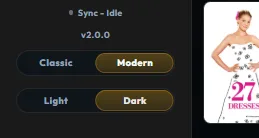
Choose Light or Dark with the separate theme control in the sidebar footer. The choice is stored in the current browser and reused when the app opens again. Theme changes colors and contrast only; they do not alter data or sync behavior.
Appearance
Media-detail options
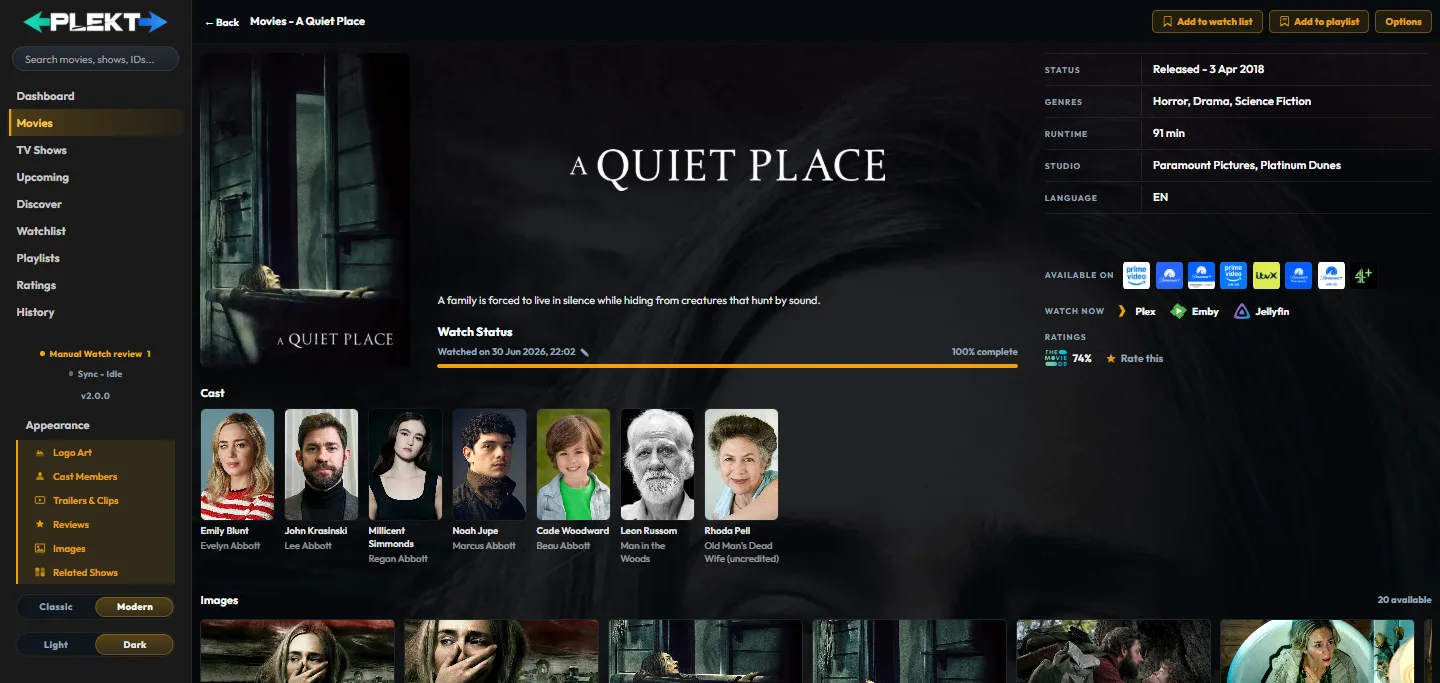
The available switches depend on the detail page that is open: Movie and TV detail pages can provide these switches: Logo Art : show the provider logo when one is available. Cast Members : show the cast section and links to person pages. Trailers & Clips : show available video content. Reviews : show provider review content. Images : show the image gallery. Related Shows : show related and recommendation content…
Appearance
Change a setting
1. Open Movies or TV Shows and select a title. 2. Open Appearance in the sidebar footer. 3. Turn the relevant section switch on or off. 4. Navigate away and back if you want to verify that the preference was stored. If an option is missing or does not persist, follow Appearance settings are missing or do not persist.
Connect services
Integrations
Connect media servers, Trakt, Tautulli, Seerr, and metadata providers.
Integrations
Media servers
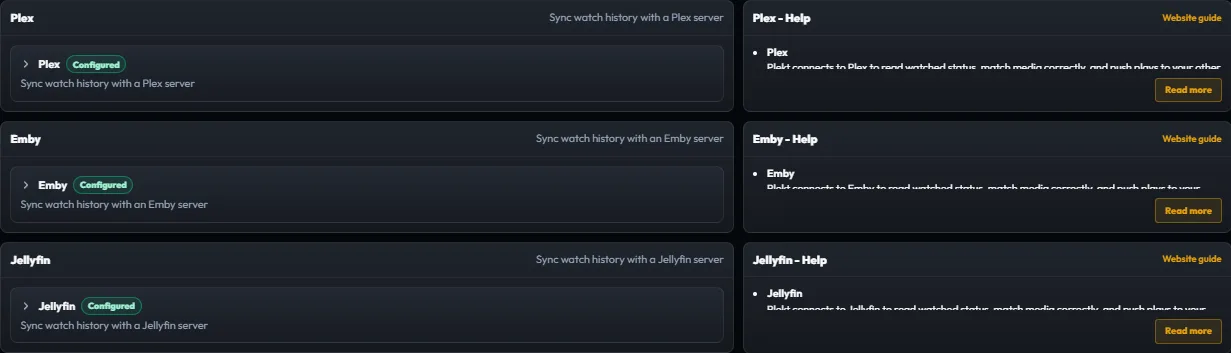
| Service | What Plekt uses it for | Inbound events | | | | | | Plex | Library state, playback, watch history, artwork context, and playlists | Built in WebSocket notification channel and scheduled checks | | Emby | Library state, playback, watch history, resume progress, and playlists | Webhooks plus polling | | Jellyfin | Library state, playback, watch history, resume progress, and playlists | Webhooks plugin plus…
Integrations
The connection checklist
For every integration: 1. Open the matching group in Settings . 2. Enter the URL, credentials, key, or token requested by that provider. 3. Save and wait for the connection test to finish. 4. Confirm the server/library or provider status is healthy. 5. Import or refresh only after the connection test succeeds. 6. Make one small change and verify it in Sync Activity. Keep the first test narrow. It is easier to…
Integrations
Plex
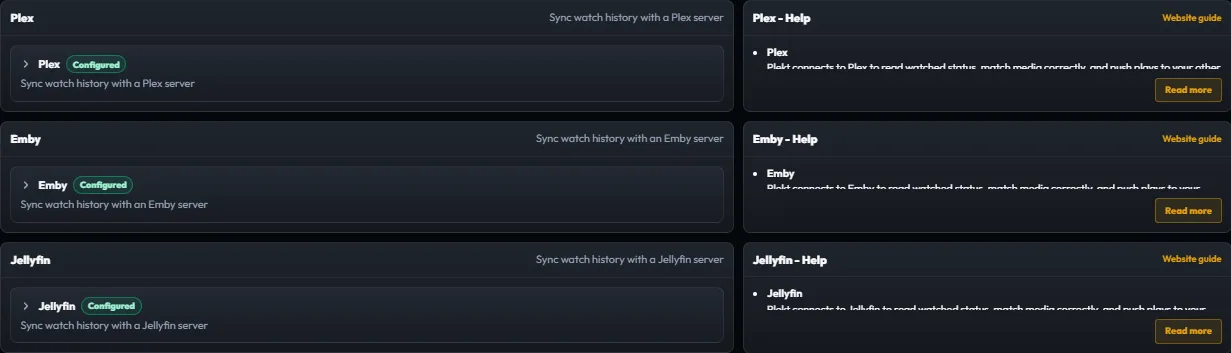
Plex needs a server URL and token, or the account connection flow. Plekt attaches to Plex's notification WebSocket once the URL and token are configured, so no external listener is required for watched/unwatched changes. In Plex, turn off Refresh library metadata periodically . During a rematch, Plex can reset watched state, and Plekt would otherwise treat that reset as a real unwatch. Configure the connection in…
Integrations
Emby

Connect with the server URL and a user login, or provide an API key and user ID. The setup guide does not store the password after obtaining a token. In Emby, open Preferences → Notifications → Webhooks , add the full Plekt webhook URL, and enable: playback: Start , Pause , Unpause , and Stop ; users: Mark Played and Mark Unplayed ; and Send All Properties , so resume fields are present. Leave unrelated event…
Integrations
Jellyfin

Connect with Quick Connect, a username/password flow, or an API key and user ID. Jellyfin 12 uses its modern MediaBrowser authorization header for account and manual token access; the manual API key and Quick Connect credential paths remain supported. Plekt keeps browser artwork requests separate from server side authentication. The password is not stored after token exchange. Install the Webhooks plugin from the…
Integrations
Trakt

The live Trakt connection is two way. A change in Trakt, Plex, Emby, Jellyfin, or Plekt can flow through the local canonical record. It can then flow out to the other connected services. Choose Connect Trakt in Settings → Connections → Trakt. Open the displayed activation link, enter the device code, and approve access. A normal user does not need a Trakt VIP subscription or personal API application for the built in…
Integrations
Tautulli

Tautulli is an optional import source for completed Plex history. Configure its server URL, API key, and user, then preview the import before committing it. Plekt creates a watch history backup before the import, matches rows by provider identity where possible, and keeps ambiguous rows in the preview for review. It does not silently overwrite existing watch history.
Integrations
Seerr

Connect Overseerr or Jellyseerr from Settings → Connections. When available, detail pages show request actions for movies and shows. Availability and request status come from Seerr; watched state remains Plekt's responsibility.
Integrations
Metadata and artwork providers
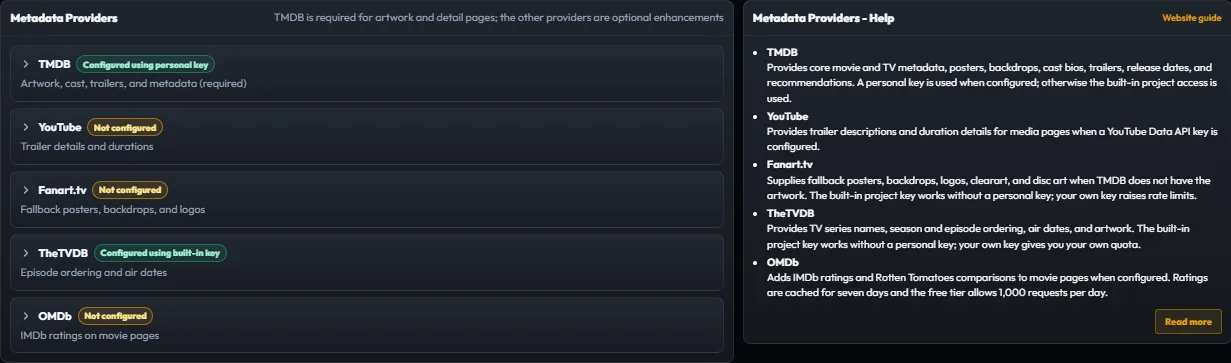
TMDB supplies posters, backdrops, cast, summaries, search, trailers, reviews, and recommendations. Add a TMDB API key first for the richest details. TheTVDB supplies show identity, season/episode numbering, air dates, and fallback art. Fanart.tv supplies community curated poster, backdrop, and logo fallbacks. OMDb is optional and can provide IMDb rating badges. YouTube is optional and can supply trailer metadata.…
Integrations
Verify a connection without guessing
After any integration change, create one known test: 1. Use a title that is already present in the local library. 2. Make one watched, unwatched, or resume change from the source. 3. Wait for the webhook or polling interval. 4. Open Sync Activity. 5. Read each destination result and follow the matching troubleshooting link if it is skipped or failed. Continue with the sync model or open Settings.
Configure the instance
Settings
Every settings group, control, maintenance tool, backup, and recovery action.
Settings
Settings map
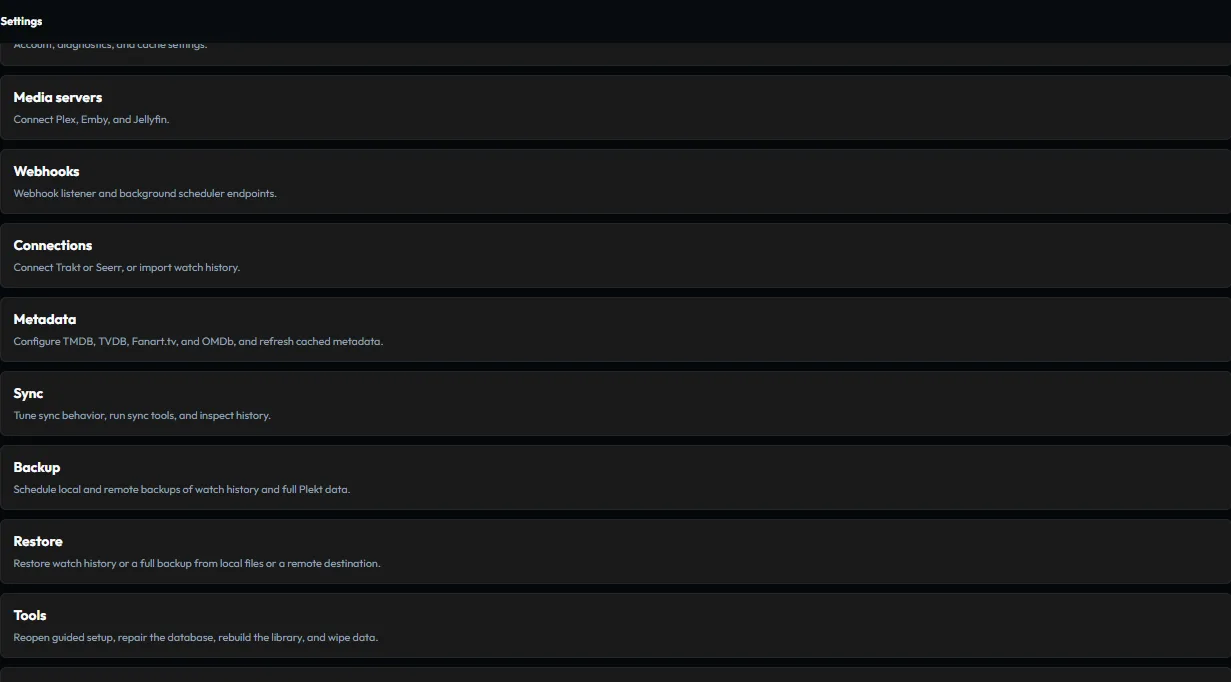
| Group | App path | Guide focus | | | | | | General | /settings/general | Account access and local instance health | | Media servers | /settings/media servers | Plex, Emby, and Jellyfin connections | | Webhooks | /settings/webhooks | Sender setup and webhook secret handling | | Connections | /settings/connections | Trakt, Tautulli, and Seerr integrations | | Metadata | /settings/metadata | Provider configuration…
Settings
General
Settings
General
Account
Settings
General
System Integrity
Settings
General
Storage and cache
Settings
Media servers
Settings
Media servers
Plex
Settings
Media servers
Emby
Settings
Media servers
Jellyfin
Settings
Media servers
Connection mode rules
Settings
Webhooks
Settings
Webhooks
Setup guides
Settings
Webhooks
Webhook secret
Settings
Connections
Settings
Connections
Trakt
Settings
Connections
Tautulli
Settings
Connections
Seerr
Settings
Metadata
Settings
Metadata
Metadata providers
Settings
Metadata
Refresh all metadata
Settings
Metadata
Refresh TMDB metadata
Settings
Metadata
Refresh TVDB metadata
Settings
Sync
Settings
Sync
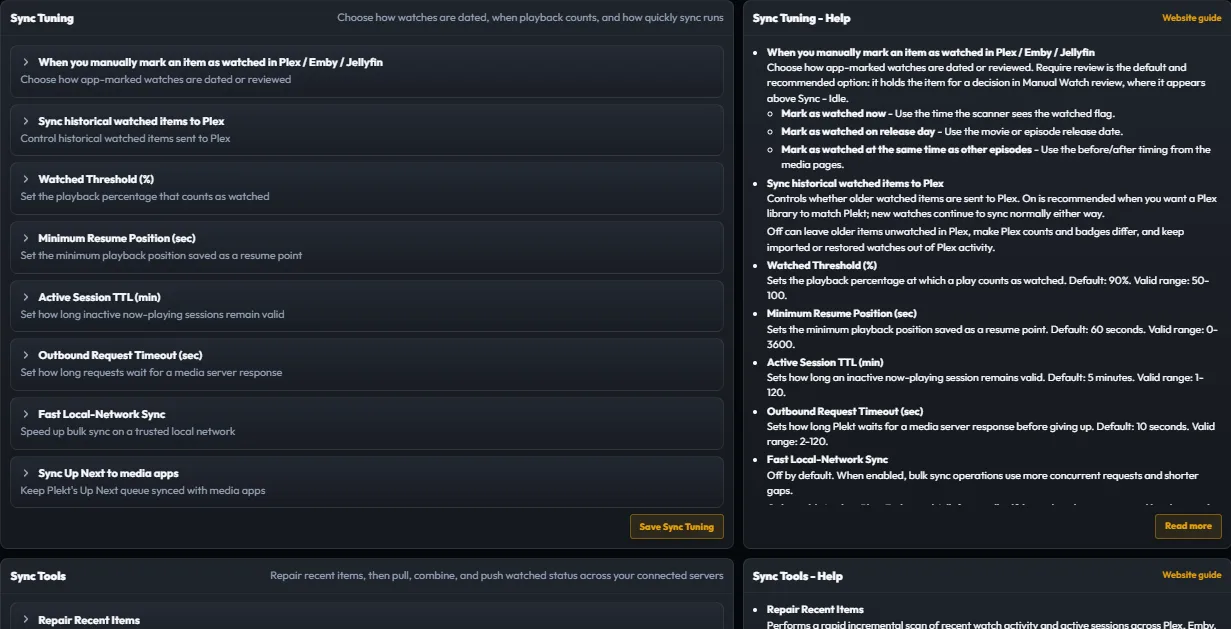
Sync Tuning
Settings
Sync
Sync Tools
Settings
Sync
Sync Issues and Match Report
Settings
Sync
Sync History
Settings
Backup
Settings
Backup
Local backups
Settings
Backup
Remote backups
Settings
Restore
Settings
Tools
Settings
Tools
Reopen Onboarding
Settings
Tools
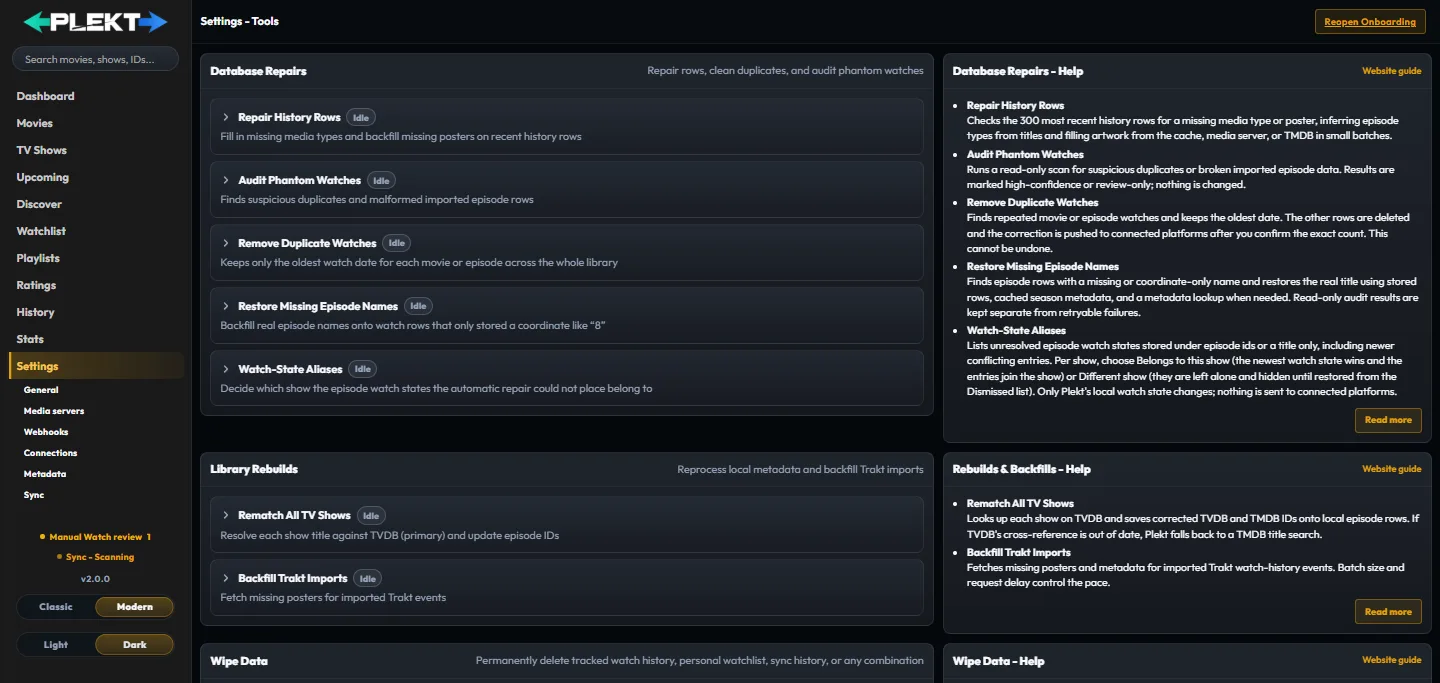
Database Repairs
Settings
Tools
Library Rebuilds and Backfills
Settings
Tools
Wipe Data
Settings
Logs
Settings
About
Sync and maintain
Sync Activity and tools
Results, retries, Force Sync, match reports, and operational evidence.
Sync Activity and tools
Read an activity row
An activity row can identify: the media item and requested action; the source platform and time; each destination selected for delivery; success , skipped , partial , or failed status; the reason a destination was skipped or failed; and a retry or log action when one is available. The list header shows how many media groups are loaded and how many have issues on the current page. Click the failed count summary pill…
Sync Activity and tools
Retry one result
Use a row level retry after correcting the specific cause: 1. Open Sync Activity from the sidebar Sync indicator. 2. Find the newest row for the title. 3. Expand or open the row and read the destination reason. 4. Correct the match, connection, or provider setting named by that reason. 5. Choose Retry failed or the available item retry. For a Trakt not found result, use the show match repair described below. 6.…
Sync Activity and tools
Retry all failed
Retry all failed retries failed or skipped items across the full history, not only the visible page. Plekt discovers the real total before confirming and runs the retry as a background job that survives navigation, reloads, and a closed tab. It runs as a background job, so it can continue while the tab is closed or you navigate away. Use it only after fixing the shared cause, such as a server being back online or a…
Sync Activity and tools
Settings sync tools
The detailed controls live under Settings → Sync. See Settings for every field, but remember that the actions have different scopes: Repair Recent Items Revisits recent watch records and attempts to repair incomplete delivery or matching state. Use this for a small recent problem before starting a library wide operation. Full Sync Watchstates Replays canonical watched and resume state to configured media servers in…
Sync Activity and tools
Settings sync tools
Repair Recent Items
Revisits recent watch records and attempts to repair incomplete delivery or matching state. Use this for a small recent problem before starting a library wide operation.
Sync Activity and tools
Settings sync tools
Full Sync Watchstates
Replays canonical watched and resume state to configured media servers in two phases. It takes a fixed snapshot, reports progress and throughput, and uses the shared sync lock so it cannot overlap Force Sync or backup restore. Stop controls cancel future batches. Completed batches remain applied.
Sync Activity and tools
Settings sync tools
Force Sync
Force Sync has two deliberate directions: Set Plekt as Source of Truth replays local watched and resume state to one selected destination or all destinations, overwriting the selected destination's state. Import Watched Status reads watched state from one selected media server or all configured servers and adds missing records locally. It does not send those changes back out or remove local state. Before confirming…
Sync Activity and tools
Sync Issues and Match Report

Open Settings → Sync → Sync Issues for unresolved jobs and the Cross Platform Match Report . Expected missing library items remain skips and are not treated as broken identity matches. The report separates two different cases: no reliable IMDb, TMDB, or TVDB identity exists; or the identity is known but the destination library does not contain a matching copy. Use the report like this: 1. Select Rescan to retry the…
Sync Activity and tools
Sync History and Logs
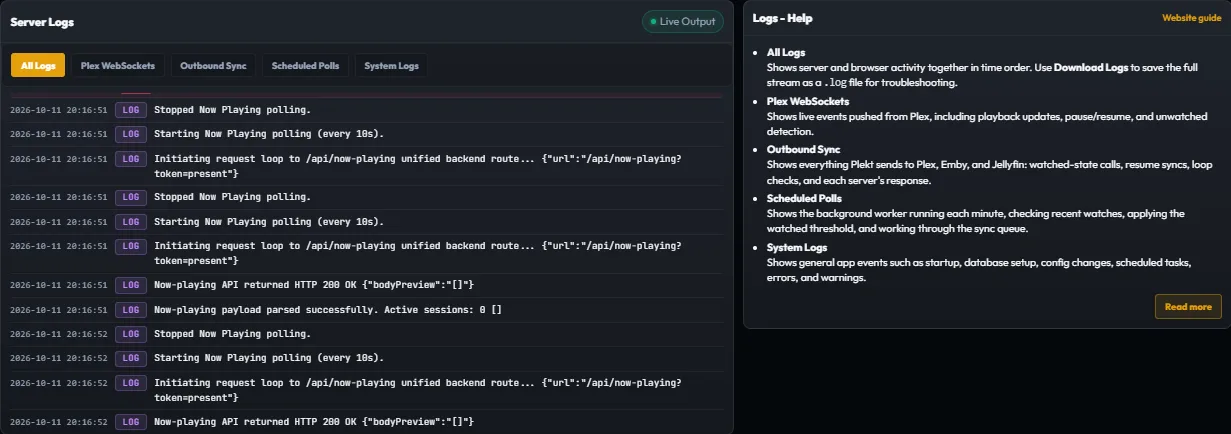
Sync History shows recent synchronization and maintenance operations, including repairs, imports, Force Sync, and restore work. The Settings → Logs page contains the server and browser diagnostic stream. Each expanded activity group also provides Download all logs , which saves the group's events as one plain text log for local review. Redact private values before sharing any exported evidence. Preserve the relevant…
Sync and maintain
Manual Watch review
Resolve uncertain watch events, correct provider state, and recheck stale reviews.
Manual Watch review
How the review queue works
Manual Watch review
Choose a watch date
For a movie or a single episode, choose the date policy that matches what happened: Mark watched now records the current date and time. Use release day uses the movie or episode release date. Use episode timing uses nearby episode dates when that context is available. Choose date & time records a specific custom date. Each season and show group has one watched and one unwatched button, such as Mark all reviewed…
Manual Watch review
Correct provider state
Choose Confirm to record the watch in Plekt and send the normal watched state correction to the connected providers. Until that decision, Plekt does not propagate the provider's watched flag. Choose Dismiss & mark unwatched when the provider event was wrong; Plekt clears the local review and corrects the provider state before closing the item. Use the show level buttons when every pending episode in a group should…
Manual Watch review
Recheck status
Use Recheck status when a watch was already handled in another client or the queue looks stale. Plekt rereads its canonical watch state and the pending review queue, then removes items that are already marked watched in Plekt. This keeps provider leftovers from appearing as decisions that still need action. Library imports also skip items that are already watched, and pending reviews that local state already answers…
Sync and maintain
Backups and operations
Backups, imports, security, and maintenance.
Backups and operations
Backups
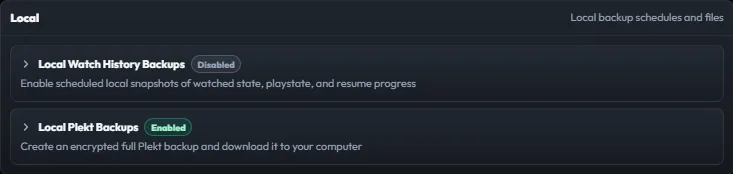
Plekt supports two local backup families: Watch history backups include history, playstate, and resume markers. Full Plekt backups are encrypted and include settings, keys, credentials, history, Watchlist, Ratings, Playlists, and other instance state. Each has its own schedule, retention, and Back Up Now action. The remote backup option can mirror either type to Backblaze B2 on its own schedule. For scheduled…
Backups and operations
Restore safely
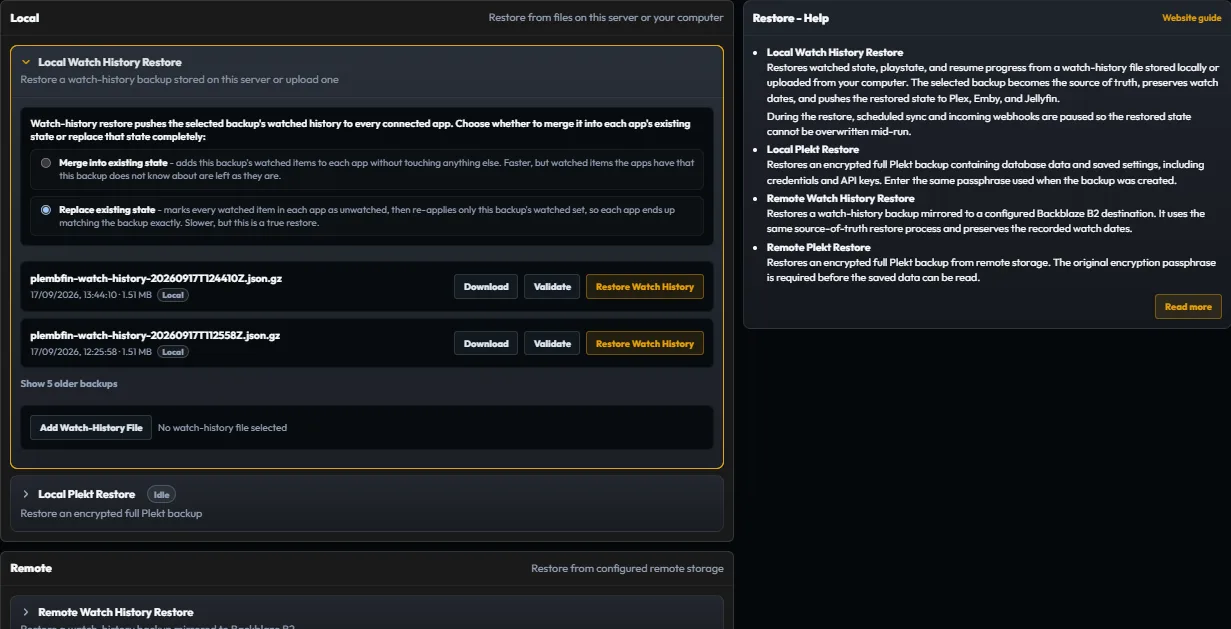
Before restoring: 1. Check whether the file is a watch history backup or a full encrypted backup. 2. Make a fresh backup of the current instance. 3. Choose Merge or Replace deliberately. 4. Review the preview and confirm the scope. 5. Keep the original backup file until the result has been verified. 6. Open Sync Activity and check a few known titles on each connected server. A restore changes local state and may…
Backups and operations
Import history
Trakt exports can be uploaded from Settings → Connections. Live Trakt sync can then remain connected for ongoing changes. The Plex history export script is useful when bootstrapping a fresh deployment or recovering years of history. Run a dry run before a write pass. For a newly connected or rebuilt library, use import followed by a deliberate full sync when you want the current Plekt archive replayed to that…
Backups and operations
Routine maintenance
Once a week or after an upgrade: confirm the /data volume is mounted and writable; check the scheduled backup result and retention; open the dashboard and confirm recent activity is still visible; review failed or partial rows in Sync Activity; check provider keys and rate limit errors if artwork is missing; and keep one known good restore point before changing release channels.
Backups and operations
Security basics

Use a unique administrator password and keep it out of source control. Keep data/ on persistent storage with permissions appropriate to the host. Put remotely reachable instances behind HTTPS or a VPN/reverse proxy. Set COOKIE SECURE=true when serving through HTTPS. Treat API keys, webhook secrets, Trakt tokens, and the optional credential vault key as secrets. Rotate them when exposure is suspected. Keep the…
Backups and operations
Updates and release channels
The recommended Docker tag is latest , which follows tested releases on main . alpha is for early testers, and develop is the least tested rolling channel for contributors. Back up before changing release channels or upgrading the container. After an update, check the app version in Settings → About, open the dashboard, and review Sync Activity for unexpected failures.
Backups and operations
PWA and local operation
Plekt is installable as a Progressive Web App on supported desktop and mobile browsers. The browser is a client to your self hosted instance. The scheduler and provider requests still run on the Plekt host. Review the Settings groups or start with troubleshooting.
Sync and maintain
Protect watch history before a rebuild
Back up watched state and resume progress before replacing a server or library.
Fix a problem
Watch progress not syncing
Trace one watch event from its source through Plekt to the destination.
Fix a problem
Troubleshooting
Start with the symptom and follow the fix.
Troubleshooting
A quick diagnostic order
Use this order for almost every issue: 1. Open the affected page and note the exact title, source, and time. 2. Check whether a new row exists in History. 3. Check the corresponding row in Sync Activity. 4. Decide whether the result is skipped or failed . 5. Fix the source, match, or destination named by the row. 6. Retry only that item or destination and verify the result.
Troubleshooting
Now Playing is empty or stale
1. Confirm you are on Dashboard → Now Playing and that the player is still active. 2. Check the media server connection under Settings → Media servers. 3. Confirm the Plekt host can reach the server URL, not just the browser. 4. Reopen the Dashboard or return to it from another tab to request an immediate refresh, then inspect Settings → Logs if the session is still missing. 5. Check the active session TTL under…
Troubleshooting
Up Next resume progress is missing or wrong
1. Open the Dashboard and check Up Next . Note the title, percentage, and source badge on its resume card; current history rows contain completed watches only. 2. Confirm the source media server is connected under Settings → Media servers. 3. Check that the player supplied both position and duration; a watched event without usable duration cannot produce a reliable resume marker. 4. If the item is already complete,…
Troubleshooting
Discover is empty or unavailable
1. Open Settings → Metadata and confirm that a valid TMDB API key is configured. 2. Return to Discover , choose Movies & TV , and press Refresh . 3. If the page reports that the server route is missing, restart Plekt so the current build is serving /api/discover . 4. If TMDB is rate limited or unavailable, wait and use Try again rather than changing local watch state. 5. Check Settings → Logs for the provider…
Troubleshooting
Watchlist, rating, or list action did not update
1. Confirm the app still shows your signed in account and reopen the relevant Watchlist , Ratings , or Playlists page. 2. Wait for the card action to finish and check the inline success or error message. 3. Reload the personal page so it can fetch the current local snapshot again. 4. For a playlist, check that the title is not already marked Added in the chooser. If it is missing from an app's copy, look for a…
Troubleshooting
Fix Match returns no useful result
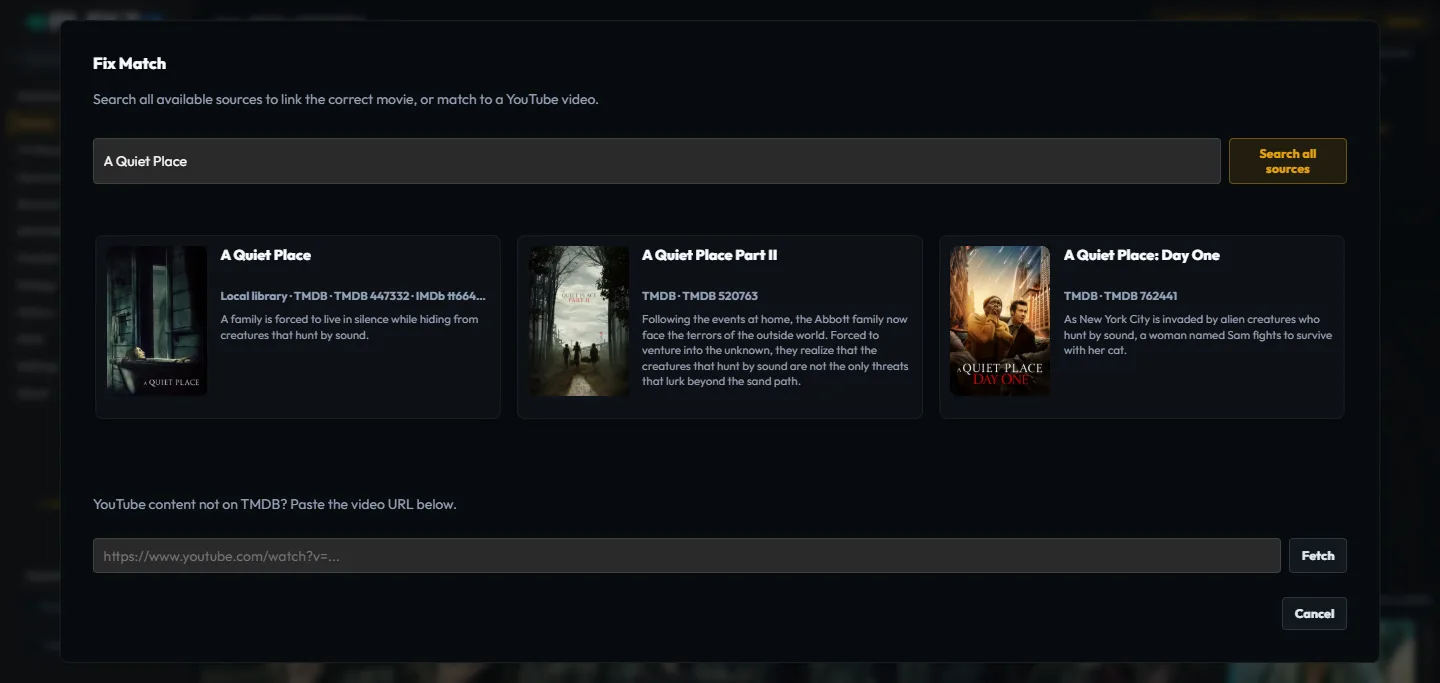
Fix Match is for a wrong or missing provider identity. It is not the same as choosing a different poster in Edit Images. It cannot make a title appear on a server that does not contain it. For a movie: 1. Open the movie detail page, or open the movie card's three dot menu. 2. Choose Fix Match . 3. Search by the exact title, year, or a distinctive title fragment. 4. Compare the year and result details with the local…
Troubleshooting
The poster three-dot menu is missing or does nothing
The poster menu is available on movie, TV, and supported History cards. On a desktop pointer, hover the card to reveal the three dot button. Select it and choose Edit watch date , Fix match , Rate , Add to watch list , Add to playlist , or Mark unwatched . Use this recovery sequence: 1. Open the relevant Movies , TV Shows , or History view. 2. Search for the title and wait for its poster card to finish loading. 3.…
Troubleshooting
Appearance settings are missing or do not persist
Appearance is available in the app sidebar footer when a movie or TV detail page is active. Use the correct scope: 1. Open Movies or TV Shows and select a title. 2. Open Appearance in the sidebar footer. 3. Change Logo Art , Cast Members , Trailers & Clips , Reviews , Images , or Related Shows as needed. 4. Navigate away and return to confirm the selected detail sections remain. If the menu is not visible, make sure…
Troubleshooting
Refresh Metadata did not update a title

TMDB and TheTVDB refresh different parts of the app. Run the provider that owns the missing information. Verify the detail page after the operation completes. For a TMDB refresh: 1. Open Settings, then Metadata. 2. Confirm that TMDB is configured. 3. Choose Refresh All TMDB Metadata . 4. Wait for the progress or completion status to finish. 5. Reopen the affected movie or show and check its overview, poster, cast,…
Troubleshooting
A watched event was not recorded
1. Make one new watched/unwatched change on a title already present in the local library. 2. Check the sender: Plex needs its connection URL/token and built in WebSocket notification channel available. Emby needs Mark Played / Mark Unplayed or the relevant playback events. Jellyfin needs User Data Saved or the relevant events from the Webhooks plugin. Trakt needs a healthy authorized connection. 3. Confirm the…
Troubleshooting
It recorded but did not reach another service
1. Open the event in Sync Activity. 2. Read the destination result and the reason. 3. If it is skipped , open the title details and repair the provider/library match. 4. If it is failed , check the destination connection and the server log for the request. 5. Correct the connection or match. 6. Use Retry failed or the row's targeted retry, then confirm the destination result. Do not immediately run a whole library…
Troubleshooting
Resume progress did not carry over
Confirm that the source emitted the position fields Plekt needs: Plex: lifecycle events with viewOffset and duration where available. Emby: PlaybackPositionTicks or PositionTicks . Jellyfin: PlaybackPositionTicks , PositionTicks , or the item playback position. Then: 1. Check that the item is not already marked watched. 2. Confirm the source and destination refer to the same provider match. 3. Check Sync Activity…
Troubleshooting
Posters or metadata are missing
1. Open Settings → Metadata and confirm the provider key is configured. 2. Check for provider rate limit or authentication errors in Logs. 3. Run Refresh Metadata for the affected title or a small scope. 4. Check Settings → General → Storage & cache if artwork is consistently absent. 5. Reopen the detail page after the refresh completes. A provider failure should not erase the local watch archive. See metadata and…
Troubleshooting
Webhook returns 401

1. Open Settings → Webhooks → Setup Guides. 2. Copy the full URL, including ?token= , when the sender cannot set a header. 3. If using a header, use the accepted webhook secret or bearer form exactly as shown. 4. If the secret was rotated, update every sender using the old URL. 5. Send one test event and confirm a new Sync Activity row. Do not paste the webhook URL into a public issue or screenshot. The token may be…
Troubleshooting
Trakt changes keep coming back
1. Make Plekt the only Trakt bridge. 2. Disable Emby and Jellyfin Trakt plugins. 3. Disable their scheduled Trakt tasks. 4. Wait for existing queued work to finish. 5. Correct the title once in Plekt. 6. Watch Sync Activity for another writer before retrying. A second writer can reapply older state after Plekt has already corrected it. For an episode level Trakt not found result, open the show group in Sync Activity…
Troubleshooting
Settings or config did not save
1. Wait for the visible save status to finish. 2. Refresh the page and check whether the value persisted. 3. Confirm the /data volume is mounted and writable. 4. Check Logs for validation or database errors. 5. Remember that credentials changed from Settings take precedence over the original environment values. If only one setting fails, follow its group guide in Settings instead of resetting the whole instance.
Troubleshooting
The scheduler is not running

1. Confirm the process is running and the data directory is writable. 2. Check the system clock and timezone. 3. Confirm the default ROLE=all process is active, or that the worker exists in a split web/worker setup. 4. Confirm the worker has the shared data volume. 5. Check that the SQLite lease is not blocked. 6. Review Logs and wait for the next scheduled interval. The default scheduler runs once per minute. A…
Troubleshooting
When to stop and restore
If a bulk operation produced unexpected unwatches: 1. Stop making further changes. 2. Preserve the current logs and Sync Activity evidence. 3. Identify the last good backup. 4. Restore the local archive first. 5. Review destination scope before sending anything back out. 6. Reconnect or repair one destination at a time. For implementation level details, use the technical troubleshooting source on GitHub.