
Playlists are ordered collections of movies, TV episodes, or both. You pick the titles yourself, or let an automatic playlist fill itself from a rule. A playlist can stay in Plekt only, or sync to any connected Plex, Emby, or Jellyfin server. Playlists never change watched state.
Open Playlists
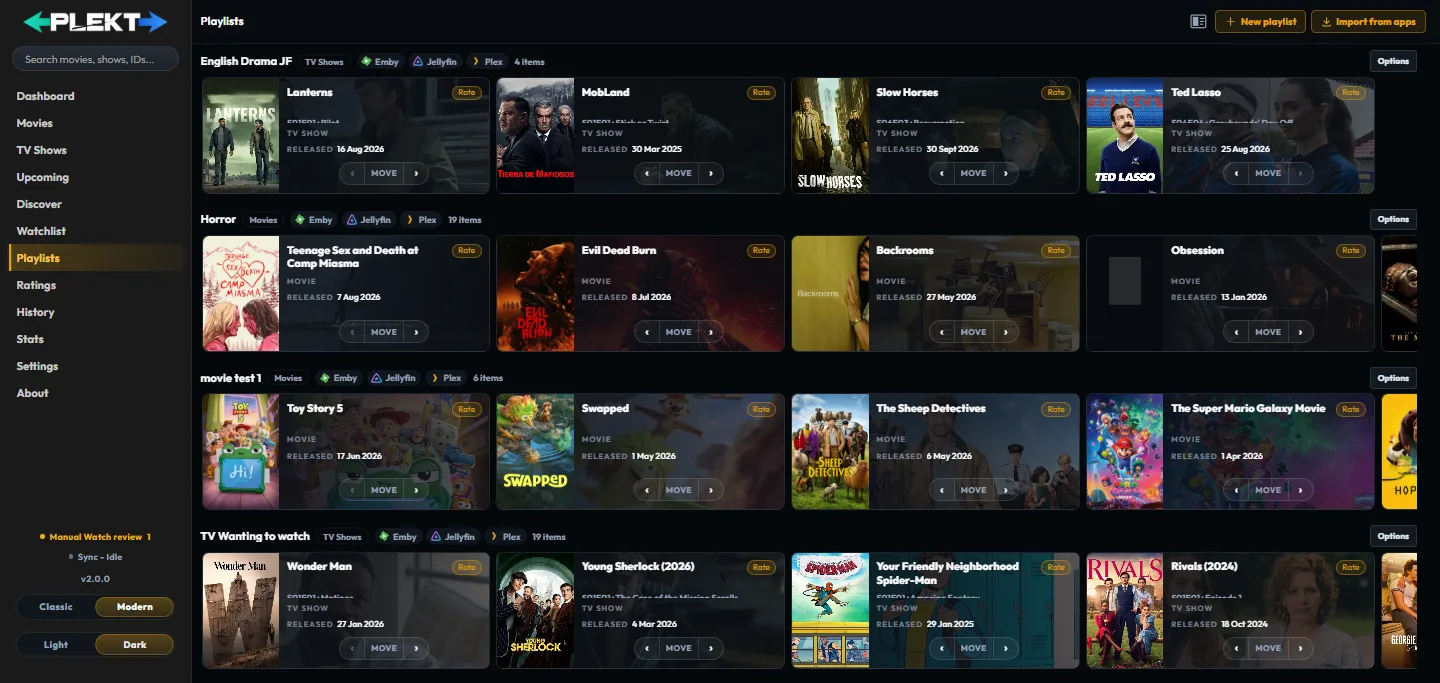
Select Playlists in the sidebar, just above Ratings. Each playlist is its own rail. The
first four show together; more playlists follow below. Old /custom-lists links open this
page.
Each heading shows:
- the playlist type: Movies, TV, or Mixed;
- an app badge for each app it syncs to. Hover a badge for its status: synced, waiting for the first sync, failed, or not found. Plekt only means no app is selected;
- the item count, and an Auto tag on automatic playlists;
- an Options menu with Edit and Delete.
The page updates itself when a scheduled sync changes a playlist.
When an app holds items Plekt could not identify, a note under the heading says how many. Those items stay in that app untouched.
Create a playlist
- Choose New playlist, then Pick items (or Automatic, see below).
- On Name and type, enter a name and choose Movies, TV, or Mixed. The type cannot change later.
- Leave Remove items once watched on to drop titles from the playlist once you watch them, or turn it off to keep them.
- On Apps, tick the apps to sync to. Only connected apps can be ticked; see Settings → Media servers. Leave every app unticked to keep the playlist in Plekt only.
Automatic playlists
An automatic playlist fills itself from a rule. Choose New playlist → Automatic, then set the rule:
- Type: Top rated (the default), Popular, Trending this week, or New releases.
- Source: your libraries, or the whole TMDB catalogue.
- Genres, original language (English is ticked on a new playlist), years or a decade, watched state (movies only), and recently added (library source only).
- Maximum titles (20 by default) and the order: ranked, or by full release date.
Talk and news shows, and library titles not yet matched to TMDB, IMDb, or TVDB, are left out. An automatic playlist can be Movies or TV, not Mixed. A TV one holds the next episode to watch of each show.
Plekt checks the rule every hour. A new playlist shows Checking the rule until its titles arrive. The Options menu adds Info (the full rule), Refresh now, and Stop updating.
Automatic playlists are sent one way, from Plekt to the apps. With Remove items once watched on, watched titles leave the playlist. With it off, a watched TV show moves on to its next episode at the next sync.
Import from apps
Choose Import from apps beside New playlist to bring in playlists made in Plex, Emby, or Jellyfin. The dialog lists each app’s playlists with their item count and a type guess. When a name matches an existing Plekt playlist, choose Merge to add to it or Import separately to keep a second playlist.
How app sync works
- Each app’s copy holds only titles in that app’s library. A title the app lacks stays in the Plekt playlist with a Missing from note (a Missing badge on posters) and joins the app’s copy once it arrives.
- TV and Mixed playlists hold individual episodes, not whole shows.
- The app playlists follow Plekt’s order, and moves made in an app are read back.
- A Plekt edit syncs a few seconds later. A background pass also runs every 5 minutes.
Changes made in an app
Plekt also picks up changes made to the playlist inside an app:
- A title added in the app is added in Plekt and to the other selected apps.
- A title removed in the app is removed in Plekt, but only while the app’s library still has it. A title that left the library stays, marked Missing from that app.
- Removing one episode of a synced show keeps that episode out on later syncs.
- A playlist deleted in the app is deleted everywhere and moves to Recently deleted.
A failed or empty read from an app never counts as a removal. When one sync would remove many titles at once, or an app reports several playlists deleted at once, Plekt holds the change and shows a banner above the rail. Choose Confirm to apply it or Discard to restore the app’s copy.
Add a movie or TV show
Use Add to playlist on a movie or TV detail page, or the Add to playlist submenu in a poster card’s menu. Pick a playlist, or choose Create a new playlist. Only playlists that accept the title are offered, and automatic playlists are left out.
Adding a show to a TV or Mixed playlist opens the episode picker. Tick episodes one by one or a whole season; episodes already in the playlist show ticked. New titles join the top of the playlist.
A title can be in several playlists and also in Watchlist or Ratings. With Posters only on, neighbouring episodes of one show stack into a single poster.
Reorder and remove titles

- On desktop, drag a card within its rail. The other cards slide aside to show where it will land.
- On a touch screen, use the Move pill at the bottom of a full card.
- Remove from this playlist in the card menu removes the title from this playlist only. Other playlists, Watchlist, Ratings, the library, and watch history stay unchanged.
Automatic playlists follow their rule, so their cards cannot be dragged or moved.
Edit or delete a playlist
- Edit renames the playlist or changes its apps. Unticking an app deletes the playlist from that app. An automatic playlist can also change its rule.
- Delete asks first, then moves the playlist to Recently deleted and deletes it from its synced apps.
Recently deleted
The Recently deleted button (with a count) appears while a deleted playlist is waiting. It opens a list showing who deleted each playlist (Plekt or an app) and when.
- Restore brings the playlist back in Plekt and in every app it synced to.
- Delete permanently removes it for good. It cannot be undone.
- Delete all permanently clears the whole list after one confirmation.
Privacy and watched state
Playlists are local choices. They never create watched events, change ratings, or change the sync identity of a title. For the other private workflows, see Watchlist and Ratings.