
Plekt steps checked against v1.3.1 on 2 October 2026.
A library rebuild can change item identifiers or temporarily remove titles. Before replacing a server, reinstalling its operating system, or rescanning a library, make a fresh backup and decide how much state the restored data should change.
Before the rebuild
- Protect Plekt’s data directory. Confirm the Docker
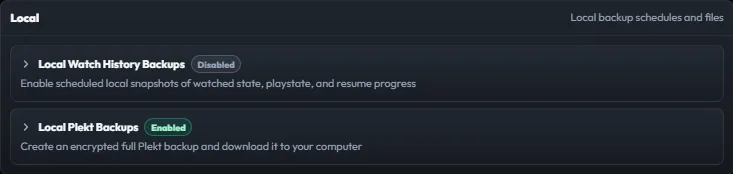
/datavolume is mapped to storage that will survive the rebuild. Recreating a container does not recreate the data it stored. - Create a Watch History backup. In Plekt, open Settings → Backup → Local and choose Back Up Now under Watch History. This backup contains watched state, playstate, and resume progress. A full encrypted Plekt backup includes broader instance data and should be handled as a secret.
- Verify the backup. Check its timestamp and size in the backup list. Keep a copy outside the machine or disk being rebuilt. Use the dry-run action to validate the Watch History file and review the expected changes without writing them.
After the rebuild
- Reconnect the rebuilt server in Plekt and confirm that the intended server and account are selected.
- Let the library finish scanning. Titles may need to be rematched if identifiers or episode details changed.
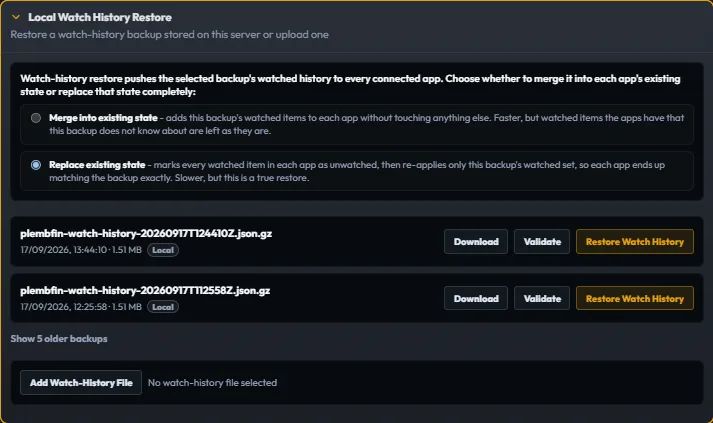
- Open Settings → Restore → Local, select the Watch History backup, and review the preview before confirming.
- Choose the restore behavior deliberately:
- Merge into existing state adds the backup’s watched items to connected apps while leaving their other watched items alone.
- Replace existing state marks watched items in connected apps as unwatched, then reapplies only the backup’s watched set. Use it only when those apps should match the backup exactly.
- When restore finishes, check a small sample of films, episodes, and resume positions in Plekt and the provider. Review Sync Activity for destination failures before normal syncing resumes.
What the backup can recover
Plekt can restore watch history and resume progress it retained in a backup. It cannot recreate state that was never captured. If Plekt was not in use before the rebuild, check whether Plex, Jellyfin, Trakt, Tautulli, or another backup has an export that can be imported; available data and matching depend on that source.
Never publish a backup file. Watch History backups contain personal viewing history, and full Plekt backups can contain settings and credentials. Read the Backup guide, Restore guide, and Operations guide for the current interface and recovery details.