
The Plekt sidebar is the starting point for every regular workflow. It keeps the main pages, sync status, appearance controls, and instance actions in one consistent place.
Main navigation
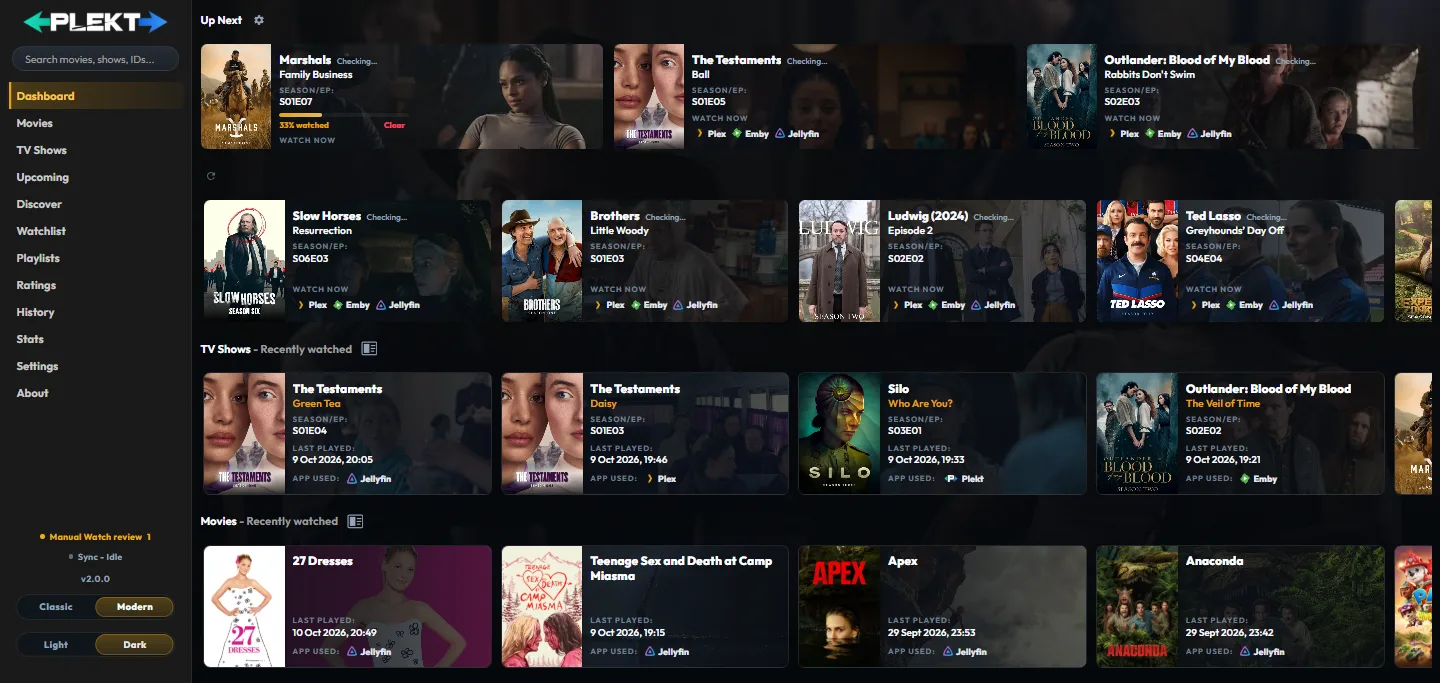
The main sidebar links to:
- Dashboard for active playback, a mixed Up Next queue, and recent completed TV and movie history;
- Movies for tracked movie records;
- TV Shows for tracked series, seasons, episodes, and progress;
- Upcoming for episode air dates;
- Discover for current TMDB-backed movie and TV feeds;
- Watchlist for media saved for later;
- Ratings for private 1–10 scores across movies, shows, and episodes;
- Playlists for ordered collections that can sync to Plex, Emby, or Jellyfin;
- History for the durable watch-event archive;
- Stats for reports and viewing breakdowns; and
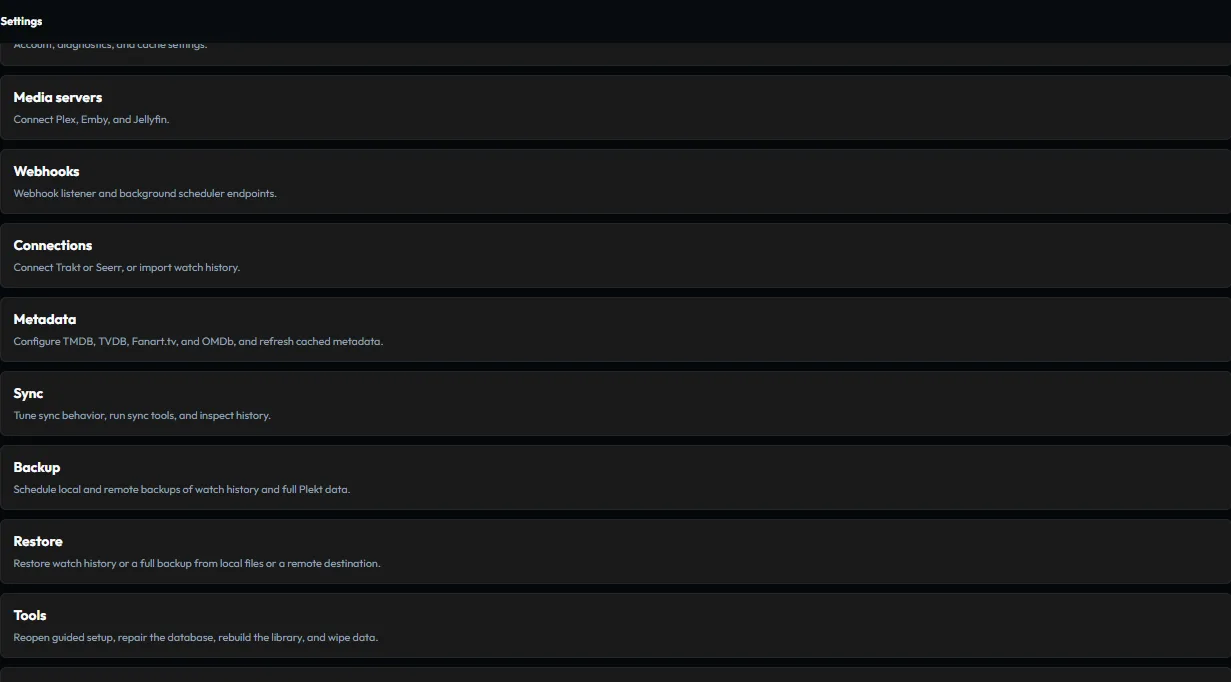
- Settings for connections, metadata, sync tools, backups, diagnostics, and maintenance.
When a review decision is pending, the sidebar status area also links to Manual Watch review. The documentation sidebar keeps Sync Activity, Manual Watch review, and Guides as separate top-level paths so the review workflow is easy to find without opening Settings first.
Select a title, poster, or history row when you need to open its media details. Discovery cards and cards from Watchlist, Ratings, or Playlists use the same detail routes, so a title can move between workflows without creating a duplicate library record.
Sidebar status and actions
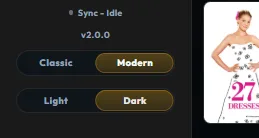
The lower part of the sidebar contains controls that are available across pages:
- Complete onboarding appears while the instance still has unfinished setup steps.
- The Sync indicator opens Sync Activity. Its status is a summary, so read the activity row or Settings → Logs for the detailed reason.
- Attention - Issue appears when a restore or sync item needs repair; use it to open the grouped attention panel and follow the retry, skip, or Fix Match action.
- The bottom-left version control opens Settings → Changelog for the release history.
- Appearance is available on movie and TV detail pages and controls optional detail sections. Dashboard history always uses Card View.
- Classic / Modern changes the visual style without changing the pages or controls. Classic is the default. The choice is saved in this browser.
- Light / Dark changes the colour mode independently of the style. Both styles work in either mode, and the choice is saved in this browser. On phones, open the navigation drawer to reach both switches.
Page navigation
The selected sidebar item identifies the current page. Links in the right-hand On this page menu jump to sections within that page and account for the sticky navigation bar.
Use the browser back button when you want to return to the previous page or detail view.
When you return to an app page, Plekt refreshes its data, starts the page at the top, and folds any open Posters only card. Selecting the current sidebar item reloads that page from the top. Live updates reconnect after the computer wakes from sleep so visible lists can catch up with changes made while the connection was idle.