
The Movies and TV Shows pages are tracked libraries built from Plekt’s local watch records. They help you find a title that Plekt knows about; they are not raw file browsers for every connected server.
Shared library controls
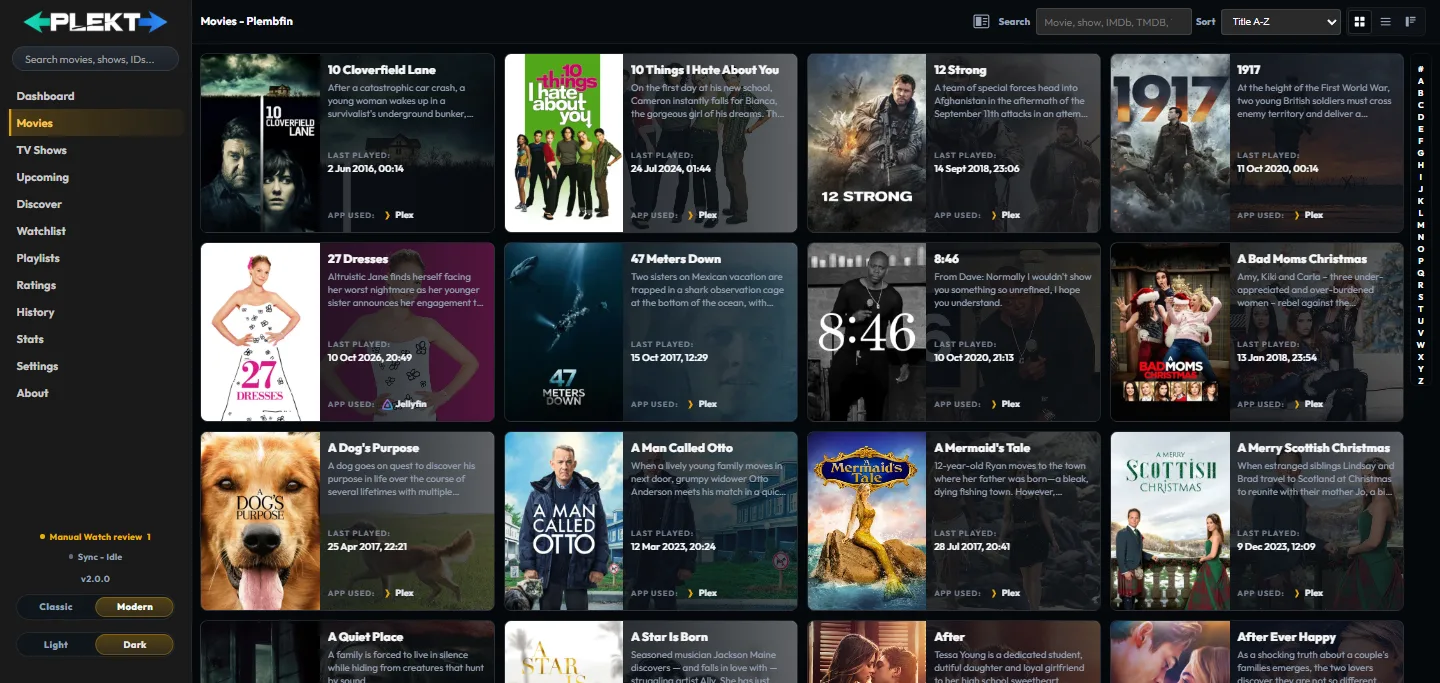
Both libraries provide a similar set of browsing controls.
The exact available sort values depend on the page and the loaded data.
- Size leads the control bar and changes how many poster cards fit across the page.
- Search narrows the loaded titles by the title and available library fields.
- Sort changes the order, including title, watch date, and the available next-airing order.
- Poster, list, or overview-card view changes how much information is visible while browsing.
- Posters only folds cards to their posters and is remembered separately for Movies and TV Shows.
- A–Z jumps to a letter in the loaded result set.
Every control sits directly in the control bar; there is no separate Options menu.
- Selecting a poster opens the relevant media detail page.
With Posters only on, select a folded poster to open its card in place. Other cards stay where they are, and selecting the open card again opens its media detail page. Library cards keep the Watched Twice or Watched N Times label when a title has multiple recorded watches; Dashboard history cards omit that line.
Large libraries load progressively as you scroll.
A card’s state or availability indicator describes the latest known record and can change after a sync or metadata refresh.
The shared card controls
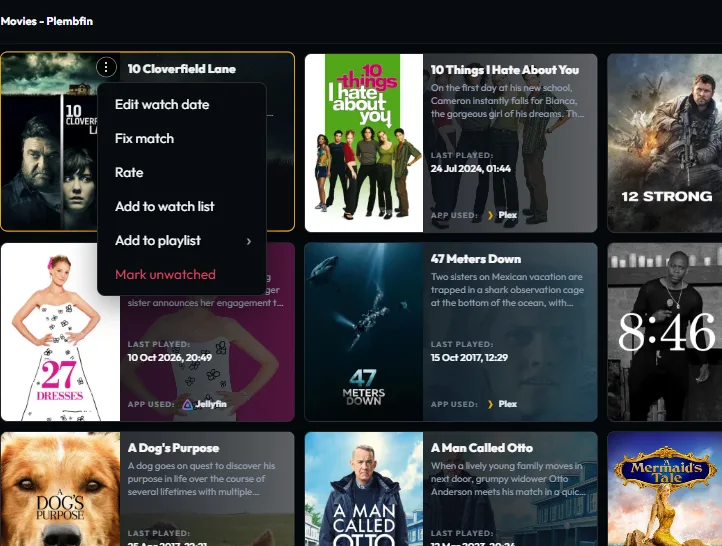
The three-dot menu is the quick-action menu on movie, TV, and supported History cards.
On a desktop pointer, hover the poster card to reveal the button.
Open it and choose:
- Edit watch date to inspect, change, add, or remove a recorded viewing date;
- Fix match to correct the provider identity attached to the local record;
- Rate to set a private local score;
- Add to watch list to save a title for later;
- Add to playlist to pick a playlist or create one; and
- Mark unwatched to clear the current watched state and propagate that correction.
The card refreshes in place after the action.
The menu does not replace the detail-page tools. Use the relevant movie or TV Shows guide for library-specific behavior, and Media details and actions for artwork, merge, delete, title-level Force Sync, trailers, galleries, and the full watch history.
If the menu is missing, move the pointer over the card and check that the card is not covered by another element.
Open the title detail page as a fallback.
Follow the three-dot menu troubleshooting guide if the button still does nothing.
For title-specific behavior, use Movies, TV Shows, and Media details and actions. This page only documents controls shared by both libraries.